With DocHub, you can fill out your forms online and download or print the completed copy in three easy steps.
Before we jump into the step-by-step instructions, please ensure you have a registered account. You can create a free DocHub account at any time here: https://dochub.com/sign-up
Is your account up and running? Let’s get started:
1. Upload Your Document
To begin, add your document to your account. From your Dashboard, click the New Document button in the top left corner.
On the next page, you can:
Drag and drop your file directly into the browser.
Click Select Files to choose a document from your device.
Import directly from Google Drive, OneDrive, Dropbox, or Box.
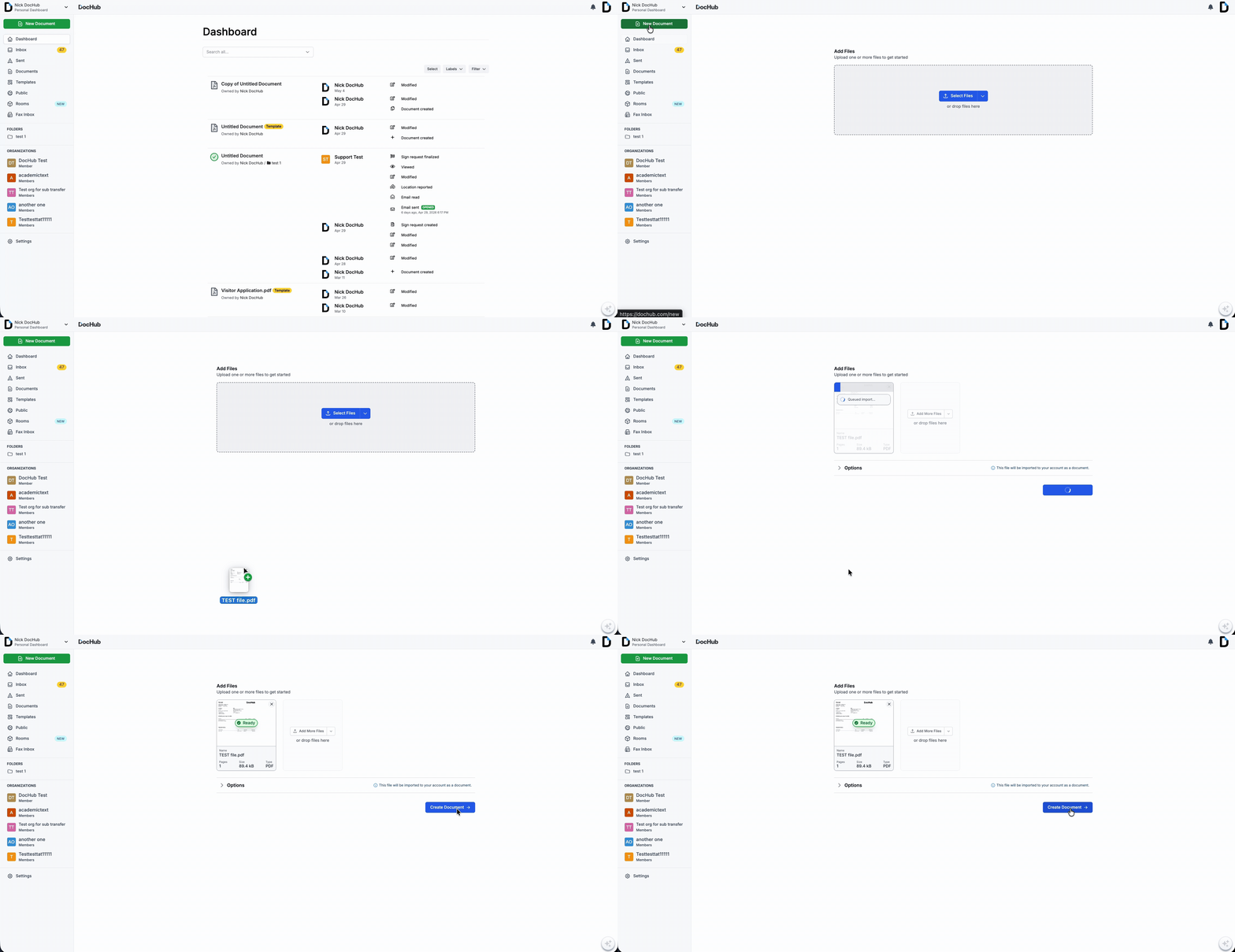
For more details on importing, check out our guide: Uploading documents and PDFs to DocHub
2. Add Fillable Fields
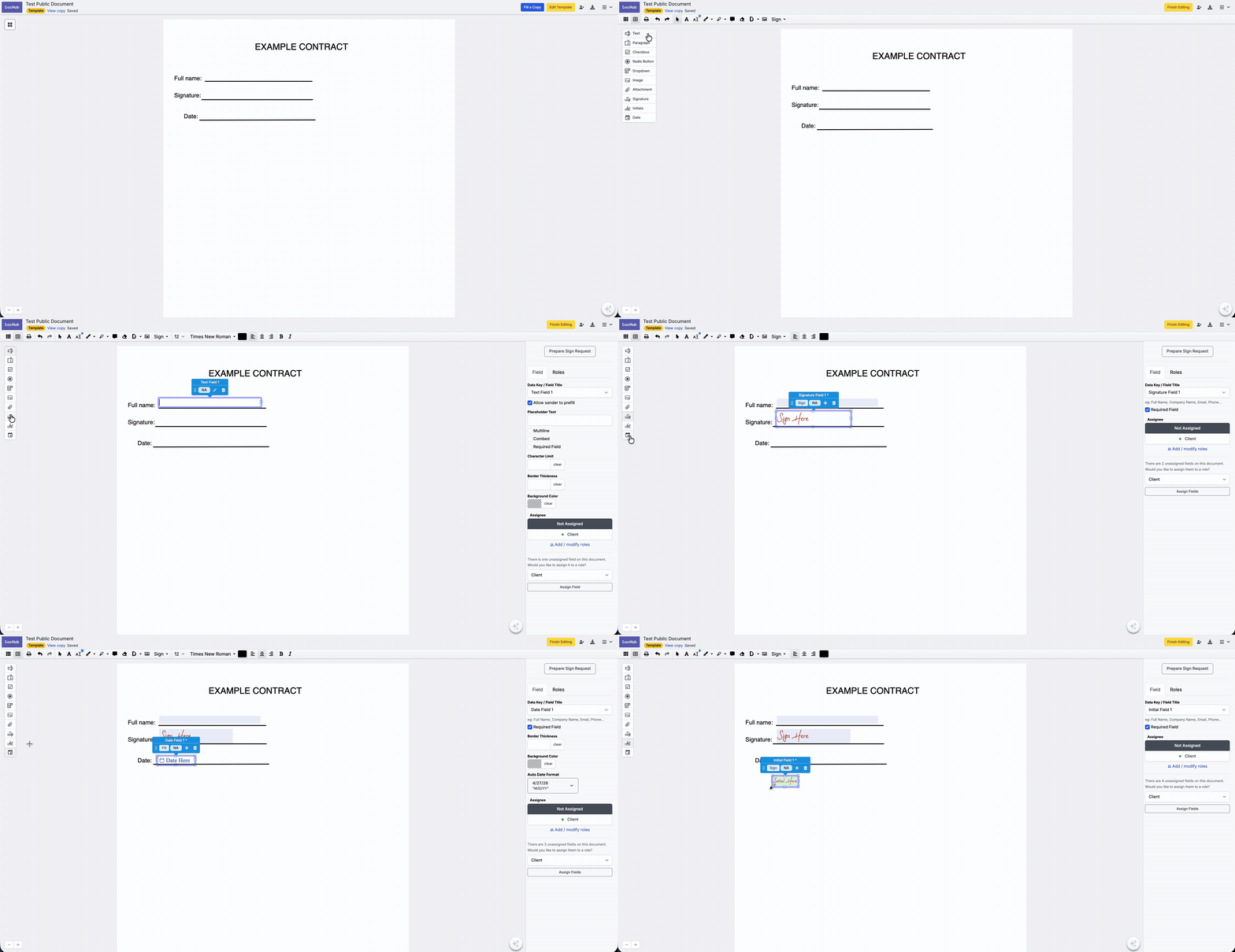
To make your document interactive, open the Manage Fields menu in the top left corner of the Editor screen. You can choose from various field types, including Text, Signature, Initials, Date, and more.
Simply click the desired field in the menu, then click the area on your document where you want to place it.
3. Fill Out Your Document
Once your fields are in place, switch to the Pointer tool. You can now click on each field to type in your information. If you prefer, you can also send this fillable document as a Sign Request to a recipient to complete.
For more information about how to add and fill out the field in your document, please check this article: Create a PDF form by adding fillable fields to a document
Note: If you are the only person filling out the form, you can skip adding fields entirely! Simply use the Text tool and other annotation tools from the Editor toolbar to type directly onto the page.