DocHub offers a variety of ways to upload PDFs and other files to edit, sign, and share from your computer, Google Drive, Gmail, OneDrive, Dropbox, Box, and more. You can choose from the following upload methods:
Note: Your file must be under 30 MB and less than 1,000 pages.
Uploading files directly in DocHub

Go to your Dashboard and click New Document near the top left or go directly to the New Document or New Template upload page and choose the Source and other options:
Document Source


Note: Clicking the “Select file” button automatically lets you upload documents from your computer. If you need to upload documents from a different source, you must click on the “drop-down” button to see the options shown in the screenshot above.
Document Privacy, Type, & Destination
Before uploading or creating a document, you can set the privacy settings by clicking “Options” under the imported document. See the screenshots below for your reference.

You can select where you want the document to be placed on your DocHub account under the Owner and Folder section.

The Type will give you the option to upload the file as a regular document or as a template.

The Privacy lets you choose if you want the file to be private or public.

You'll see drop-down menus for Privacy, Type, and Owner (a.k.a. destination) which by default will be set to a Private, regular document owned by your individual user. See these articles for more information about these settings:
Who can see the documents I upload?
What is the difference between a template and a document?
Uploading documents to your organization
An organization has its own, dedicated upload page for documents that you want members to access. For more info, see: Uploading documents directly to your organization instead of your individual account.
If you've already uploaded the file to your individual DocHub account, you move it over to your organization by simply changing the Owner. See this article Transfer documents between your account and organization.
Uploading multiple documents
If you need to add or upload more than one document, the option will be available next to the imported document in the upload section. See the screenshot below for your reference.
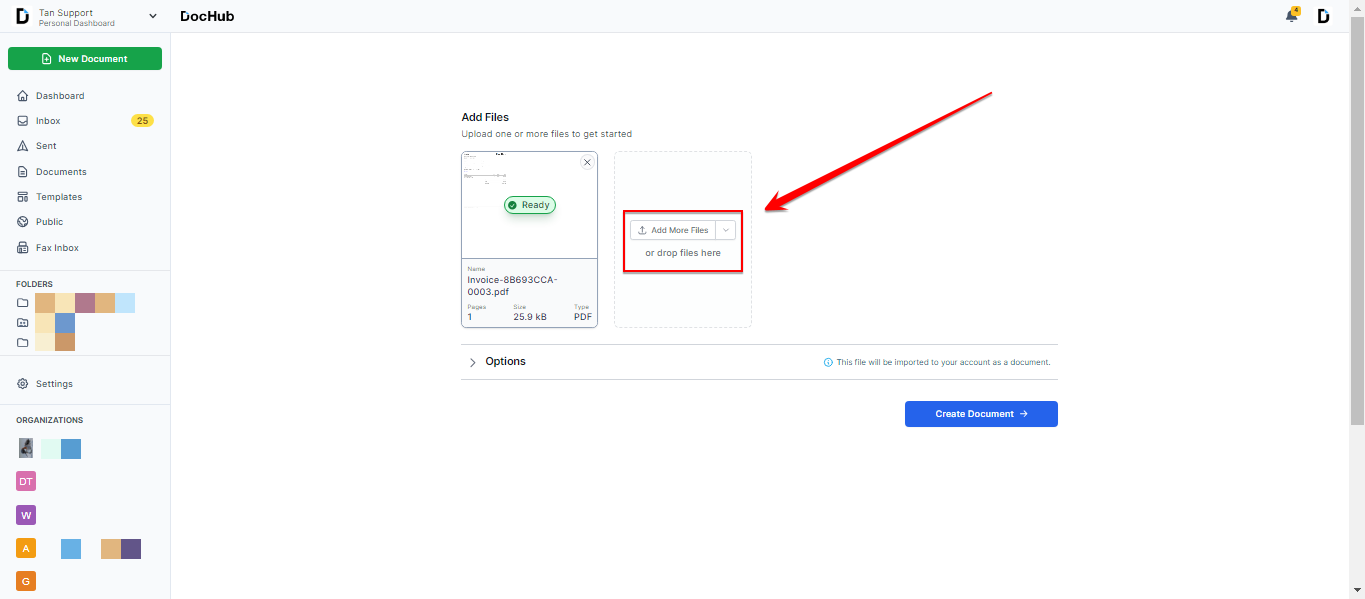
Once you add multiple documents, an option will appear to help you choose if you want the files to be uploaded separately or merge them as one file. See the screenshots below for your reference.


Note: Selecting “Bulk Import” will direct you to your account’s “Document” counter where you can open each file separately. Selecting “Create Envelope” will direct you to the editor page since the files will be opened as one document.
Opening files from Google Drive
You can connect DocHub to your Google Drive where you can simply double-click a file to open it in DocHub or right-click and choose Open With > DocHub. See these articles for more info:
Connect DocHub to your Google Drive
Open a file with DocHub from within Google Drive
Opening files from Gmail
Once DocHub is connected to your Google Drive, your email attachments in Gmail can be opened with DocHub app by previewing the attachment and click on Open With > DocHub, or any PDF attachments can be opened with DocHub's Chrome Extension. See these articles:
DocHub Chrome Extension Overview
Opening a PDF from a web address
If you are browsing the web and open a PDF to view in your web browser, you can use DocHub's Chrome Extension to open it in DocHub. This will create a copy of it in your account.
Once the Extension is installed, just open a PDF from a search result or webpage, and you'll see a button at the bottom to 
You can find a video dedicated to this topic on our YouTube channel by using the following link: How to Upload a Document to DocHub