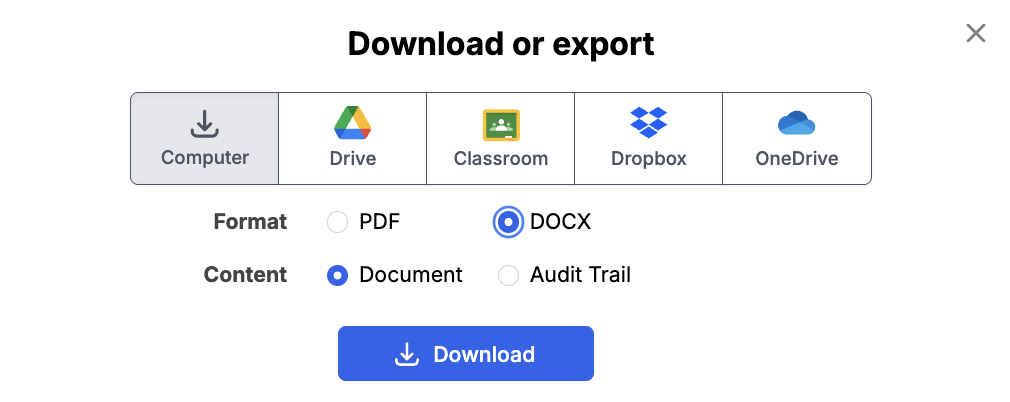
DocHub offers several easy ways to export, download, or share your PDF documents and is an essential and invaluable tool for anyone who handles PDF documents for personal and professional use. It's also integrated with Google Drive, Dropbox, and OneDrive for direct, seamless transfers between DocHub and your favorite cloud storage accounts for the ultimate convenience.
From an open document
Click  in the upper right corner.
From your Dashboard
Right-click on a document and choose  Download/ Export.
Select from the following options:

Most download & export methods will have a row of checkboxes for PDF Options to flatten your PDF or certify your document which is explained below.
If you are wanting to share your PDF with other people, see: Share or send documents and PDFs.
Save to computer
Download your document as a PDF to your PC, Mac, Chromebook, tablet, or smart phone. This is explained more in our article: Can I use DocHub on a phone, tablet, or computer with a touchscreen?
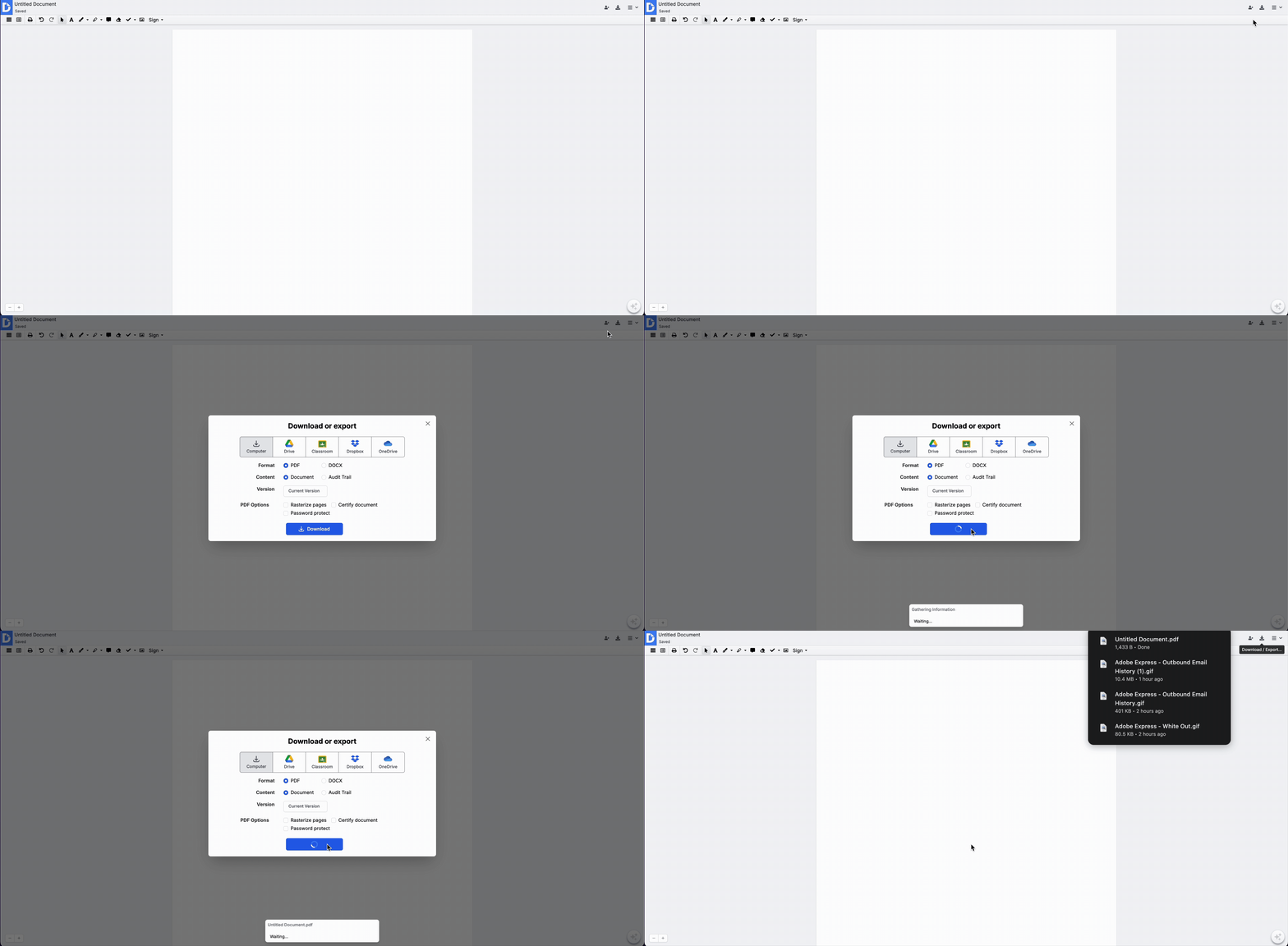
To download more than one at a time, see the section below for Downloading Multiple Documents as a Zip File.
Export to Google Drive 
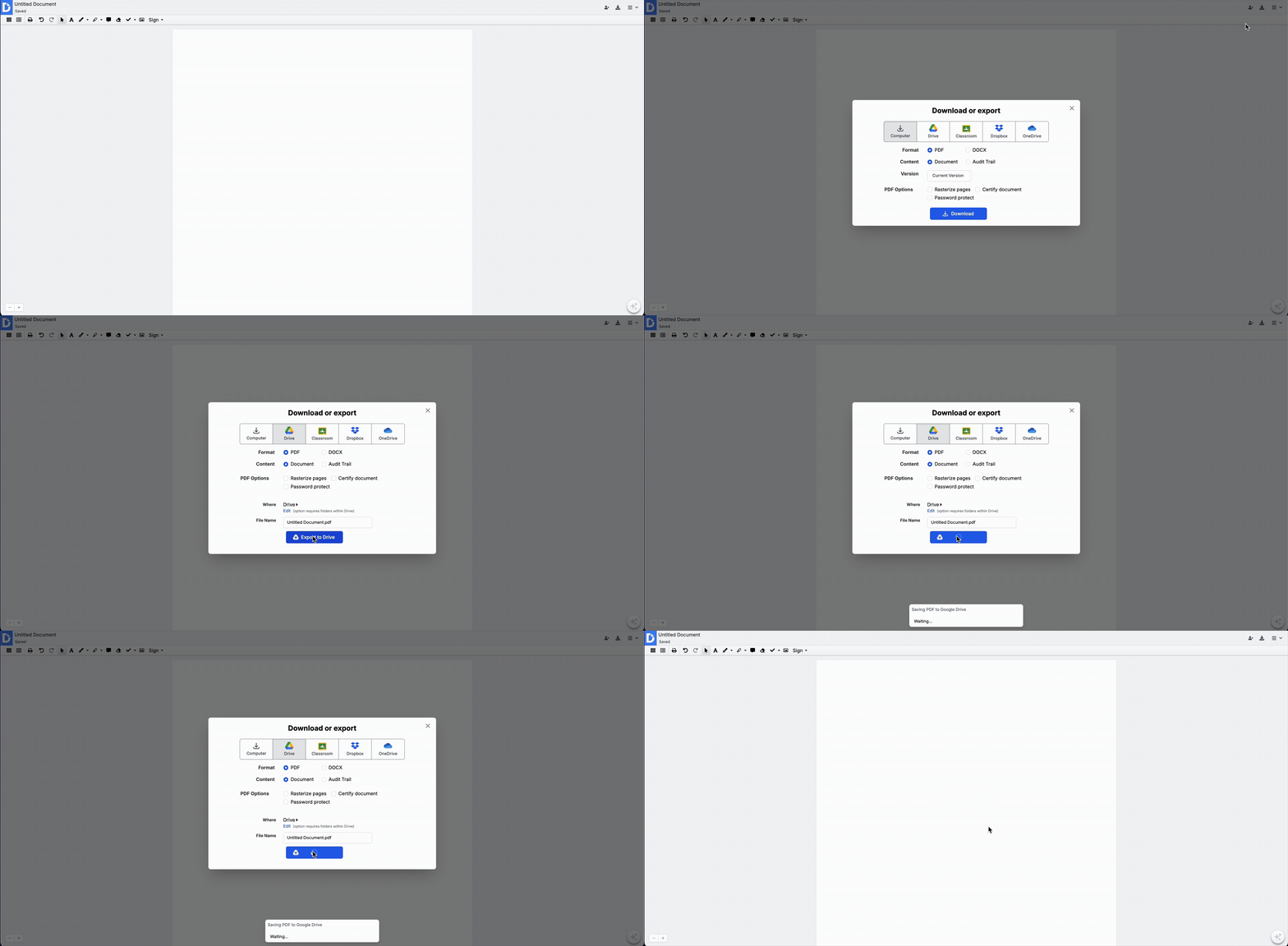
Transfer your PDF document directly to your Google Drive with the ability to control which folder destination and whether you want to overwrite an existing version if the same file already exists in Google Drive. See our article Save or export from DocHub to Google Drive.
Export to Google Classroom 
If you are a student or teacher that uses Google Classroom, you can export your PDF assignments directly to your Classroom. Once you've selected the Classroom option in the row of export choices, click on 'Create Share Link' (if you haven't created a Share Link for this PDF yet), Upload to Google Classroom and follow the instructions in the dialog window that appears.
Export to Dropbox 
Export your PDF documents directly to your Dropbox. If you haven't authenticated your Dropbox account with DocHub yet, you'll be asked to log in and agree to the basic terms.
Export to Microsoft OneDrive 
Export directly to your OneDrive and choose a destination folder. If a copy of the file already exists in OneDrive, the new file from DocHub will overwrite it, but you can access previous versions or revisions of your file in the desktop version of OneDrive and online if you have a Business account with OneDrive.
PDF Options

Most export methods will include a section for PDF Options in the dialog with checkboxes to apply an action to the downloaded or exported version of your PDF. Choose from the following options:
Flatten
Flatten fields (for PDF forms only)- locks all of the form fields and embeds them into the PDF as permanent text.
Rasterize pages - Renders any embedded page content such as text into images that can't be copied later.
Certify
Certify document - Embeds an Adobe compliant digital signature that certifies the creator of any signatures in your document and assures the document has not been altered after signing.
Encrypt
Password protect - add password encryption to your downloaded PDF.
Compress
Compress File - shrinks file sizes by removing redundant data, making them faster to share and saving storage.
Downloading Multiple Documents as a Zip File
You can also download multiple files to your computer from your Dashboard by selecting more than one and then go Actions -> Download.

Download/Save document as a Word file
When downloading a document from your DocHub account, you can now select one additional file format: .docx. Select the DOCX option in the Download or export window and hit the Download button to save your document as a Word file.