To transfer documents from your individual DocHub account to one of your organizations or vice versa, you can simply change the Owner of the document. Here's how:
From the document's right-click menu on your DocHub dashboard, or from the menu while viewing the document in DocHub, select Share or Send
Click Edit on the right of the section for Who Has Access.


3. Click on the Owner drop-down menu and select an organization or user.

If you don't see the organization in the Owner menu, you either aren't a member of the organization, or your role is set to Agent (only Content Managers, Owners, and Admins can do this transfer).
You can do the same for Sign Request documents that are In Progress or Finalized. For instance, if you'd like a Sign Request to appear as being sent from your organization, open the document and follow the same instructions in the Share with others window. This action will also move the document from the Sent section of your DocHub Dashboard to the Sent section of your organization.
If you don't need to give access to your entire organization, you can also share your document on an individual basis. That can be done using the same Share dialog by entering the person's email address in the field at the bottom of the window and clicking on Add.
To learn more about the different ways to share a PDF in DocHub, see our article for Share or send documents and PDFs.

If you've been uploading to your account and then keep having to transfer to the organization, you can skip the 2nd step by uploading it straight to your organization. See: Uploading documents directly to your organization instead of your individual account
Transfer documents through the People Page
If you would like to transfer all of your documents from your individual account to one of your organizations at once, this can be done now from the People page of your organization.
Note: This feature is available only for Admin and Owner roles, and you can transfer documents only from your own account.
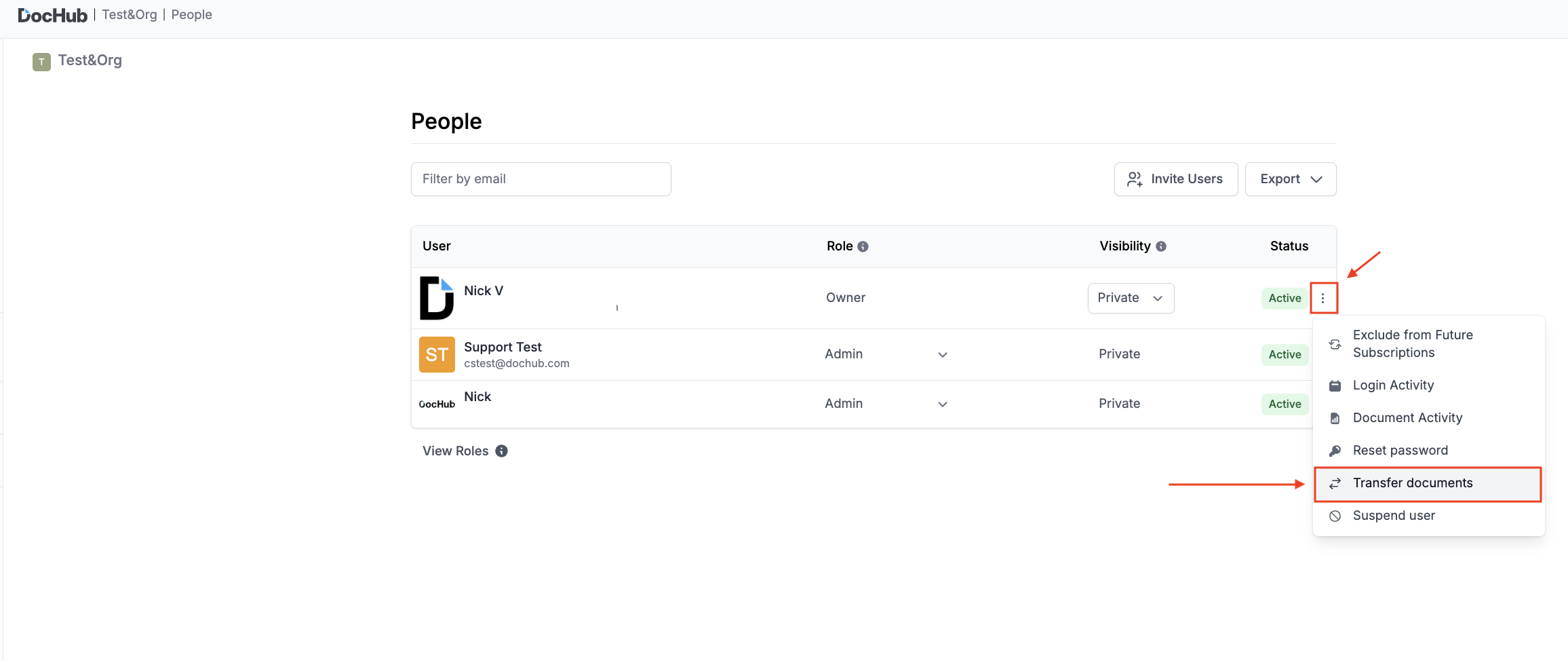
To transfer documents, please make sure that you are logged in under the organization account and go to the following page:
DocHub > Settings > People
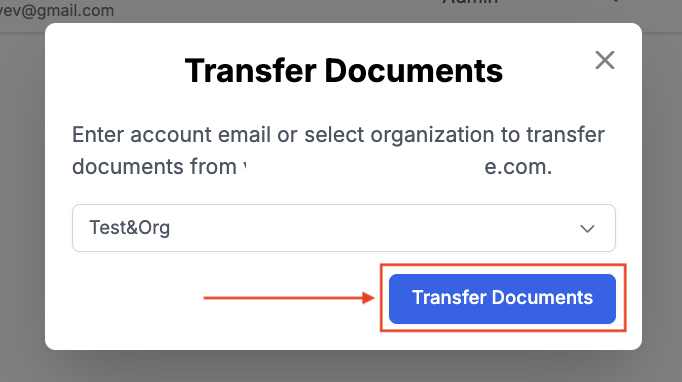
Find your account among the list of members and click on the three-dot button in front of your email address. Select the option “Transfer Documents” from the drop-down menu, and then select where exactly you want to transfer your files. Once done, confirm the name of the organization that you chose by typing it in the required line.
After the transfer is complete, you should be able to locate all of your files in the Documents folder of the account where they were transferred.