About DocHub
DocHub is a document management solution that simplifies and streamlines workflows. With DocHub for iOS and Android, you can quickly edit and sign your documents, even on the go. This guide will help you learn about the key features of the DocHub mobile app.
Install DocHub for mobile
Overview and functionality
Dashboard
Inbox/Sent
Templates folder
Documents folder
Upload documents
Document Editor
Install DocHub for mobile
To install the mobile app:
Go to App Store (iOS) | Go to Google Play (Android)
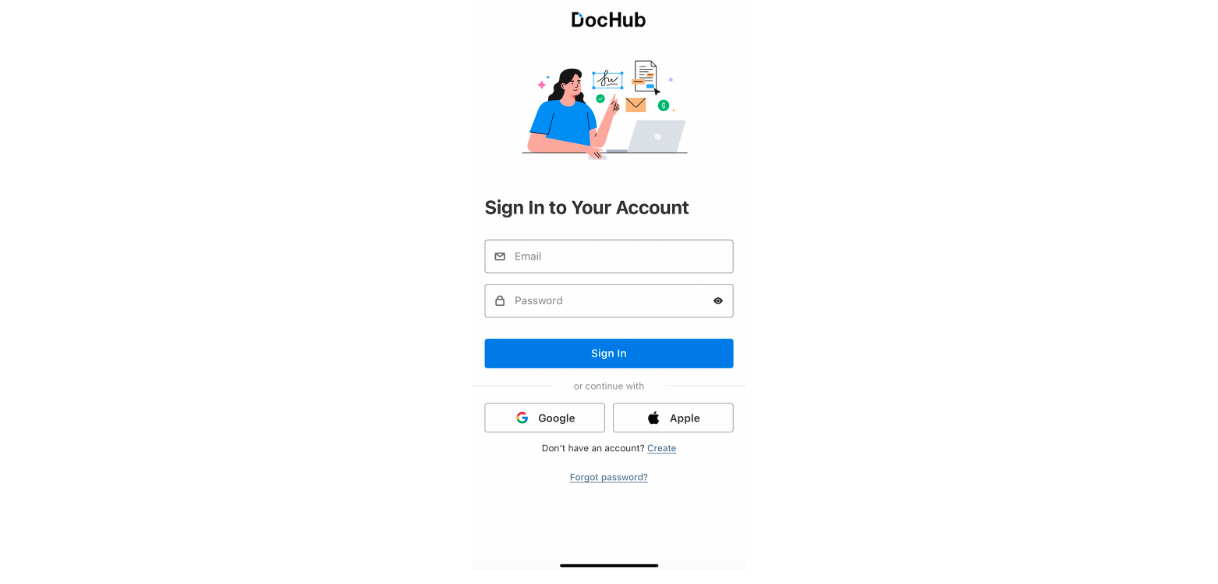
Sign in or sign up for DocHub
Adjust any additional settings and permissions
Overview and functionality
| To navigate through the app, tap In the left-hand pane, you can find the dropdown menu with your name. By tapping it, you can switch between your personal account and the Organizations you’re part of. In the Account section, you can change your name and primary email, add your signature and initials, and update your password and account details. In the Subscription section, you can manage and upgrade your subscription plan. In Settings, you can set your notification preferences and turn on facial authentication. Use the Support section to ask our Support team anything you’d like to know about the DocHub mobile app. In the Folders section, you can find a list of your folders and create a new one. |
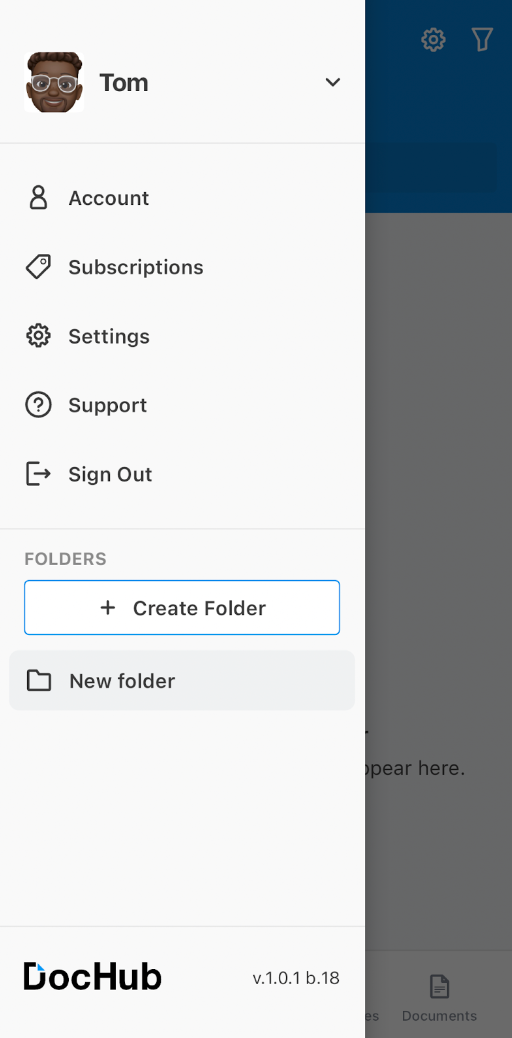
 in the top-left.
Dashboard
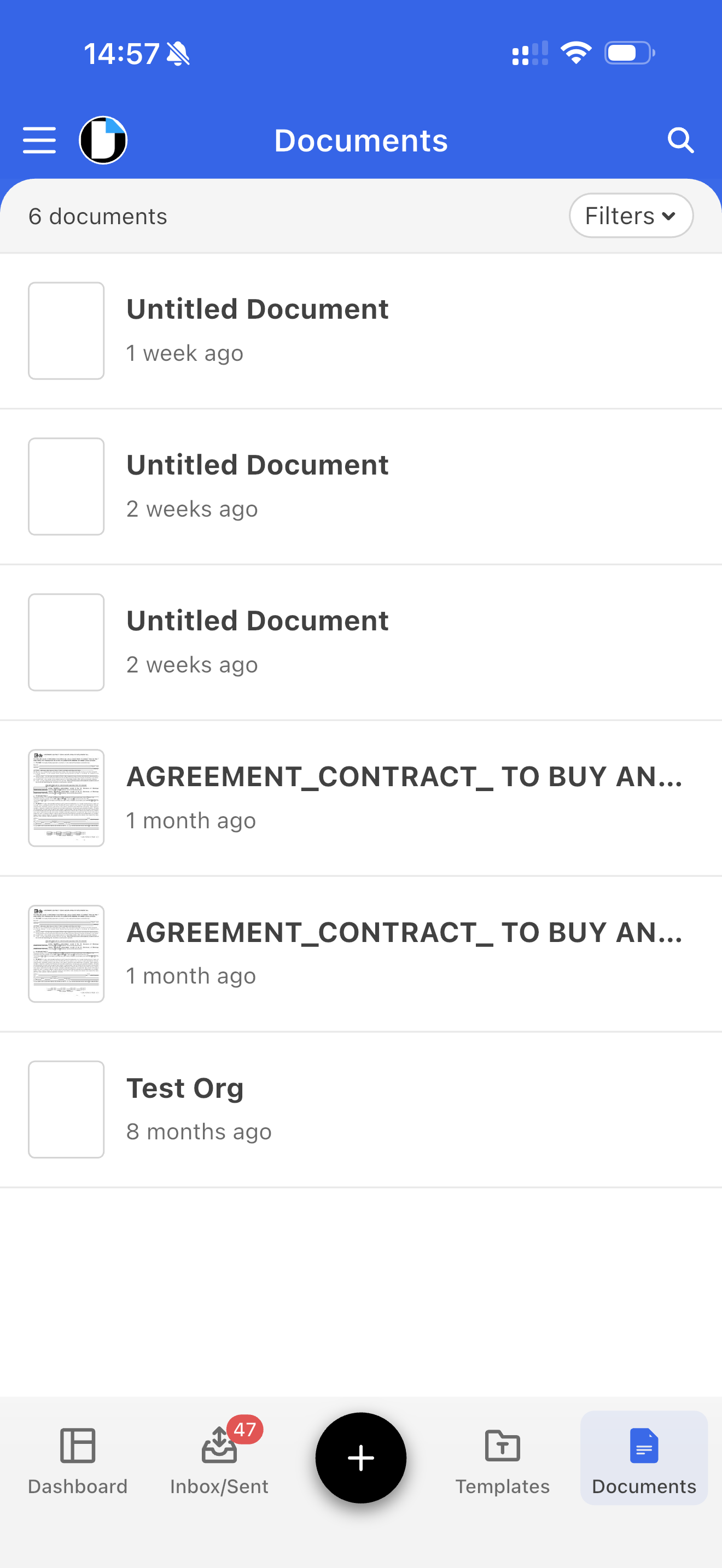
The Dashboard is the main section you see when you open your personal or organizational account. Here, you can view your recent activity with documents, templates, and Sign Requests. Use the navigation bar at the bottom to switch between the Inbox, Templates, and Documents folders.
Inbox/Sent folder
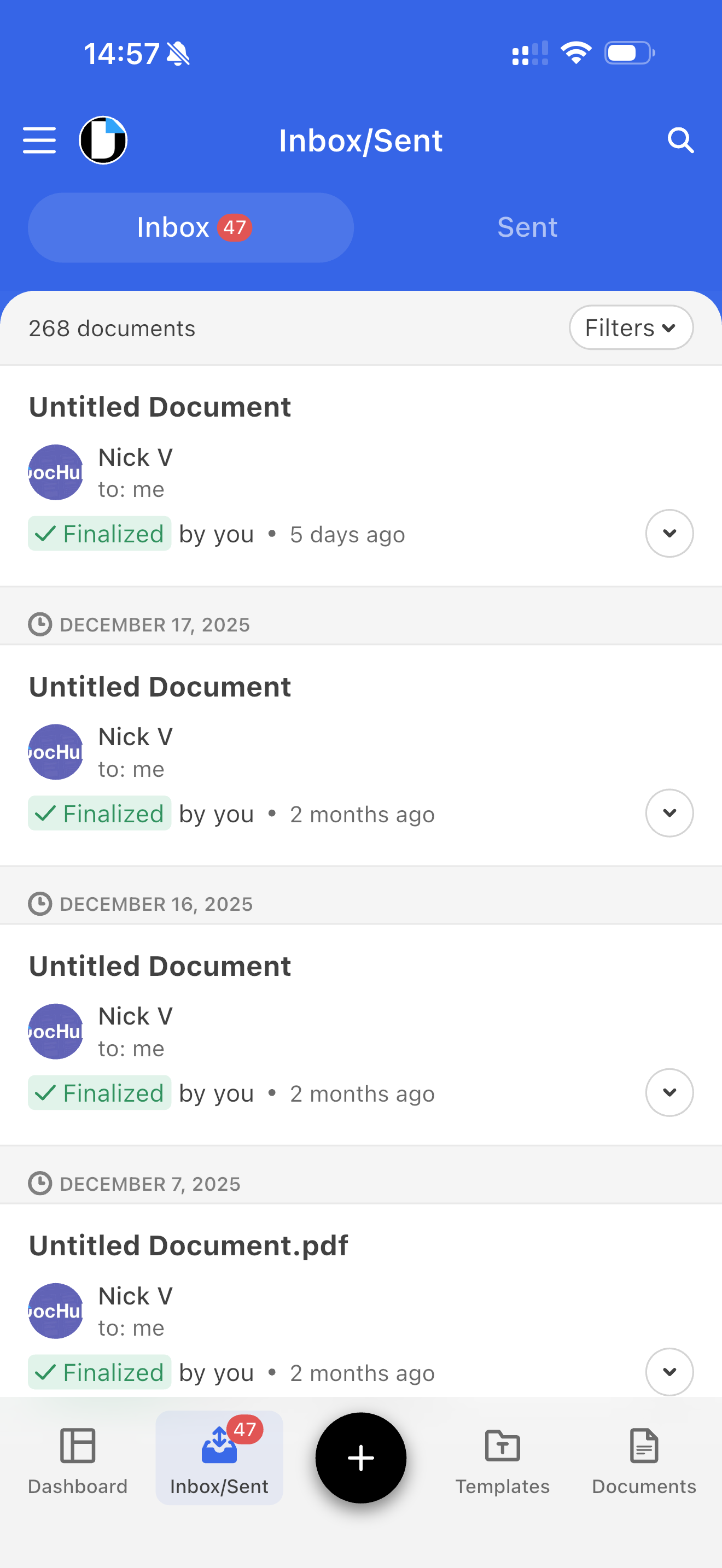
The Sign Requests you receive and send reside in the Inbox and Sent tabs within the Inbox/Sent folder. You can filter requests by signer or status by tapping the filter icon in the top-right corner.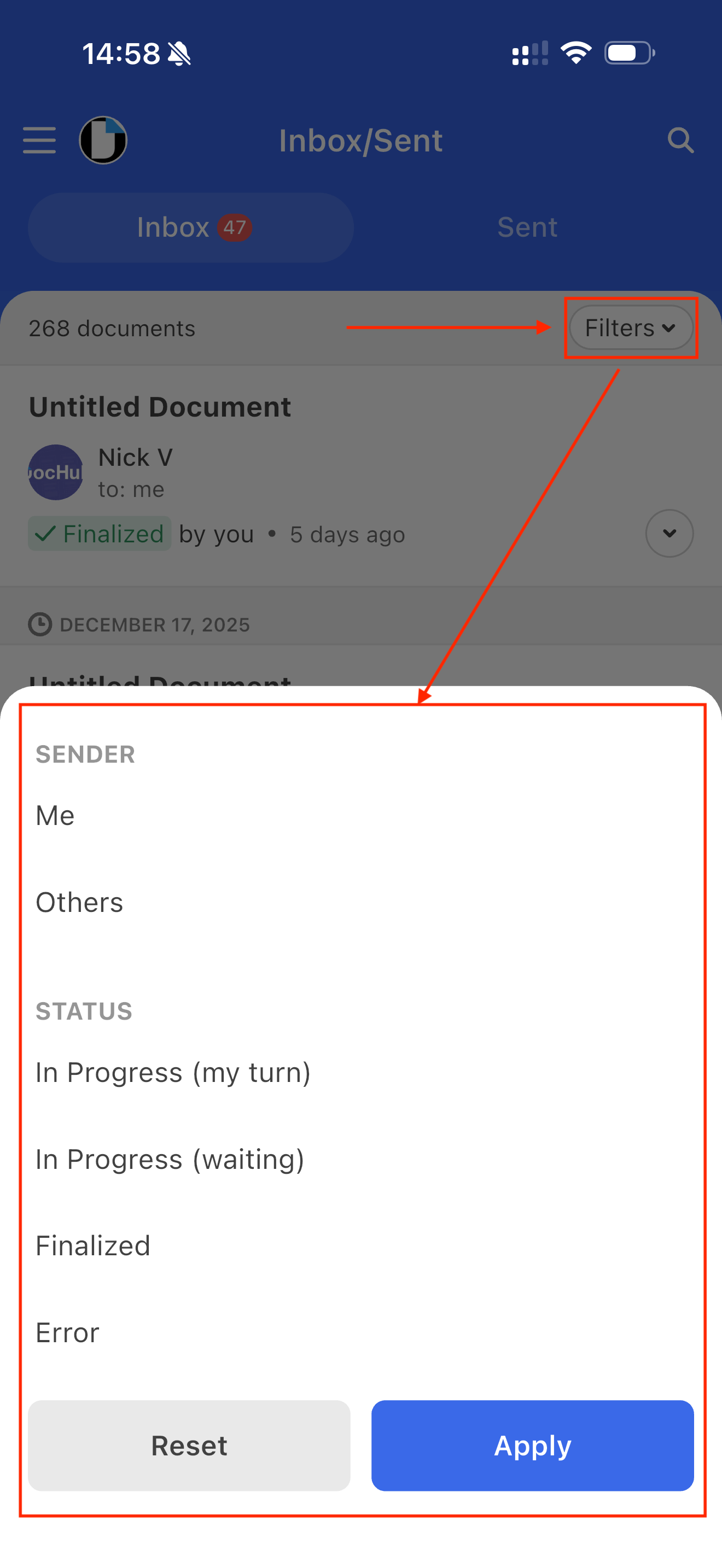
Templates folder
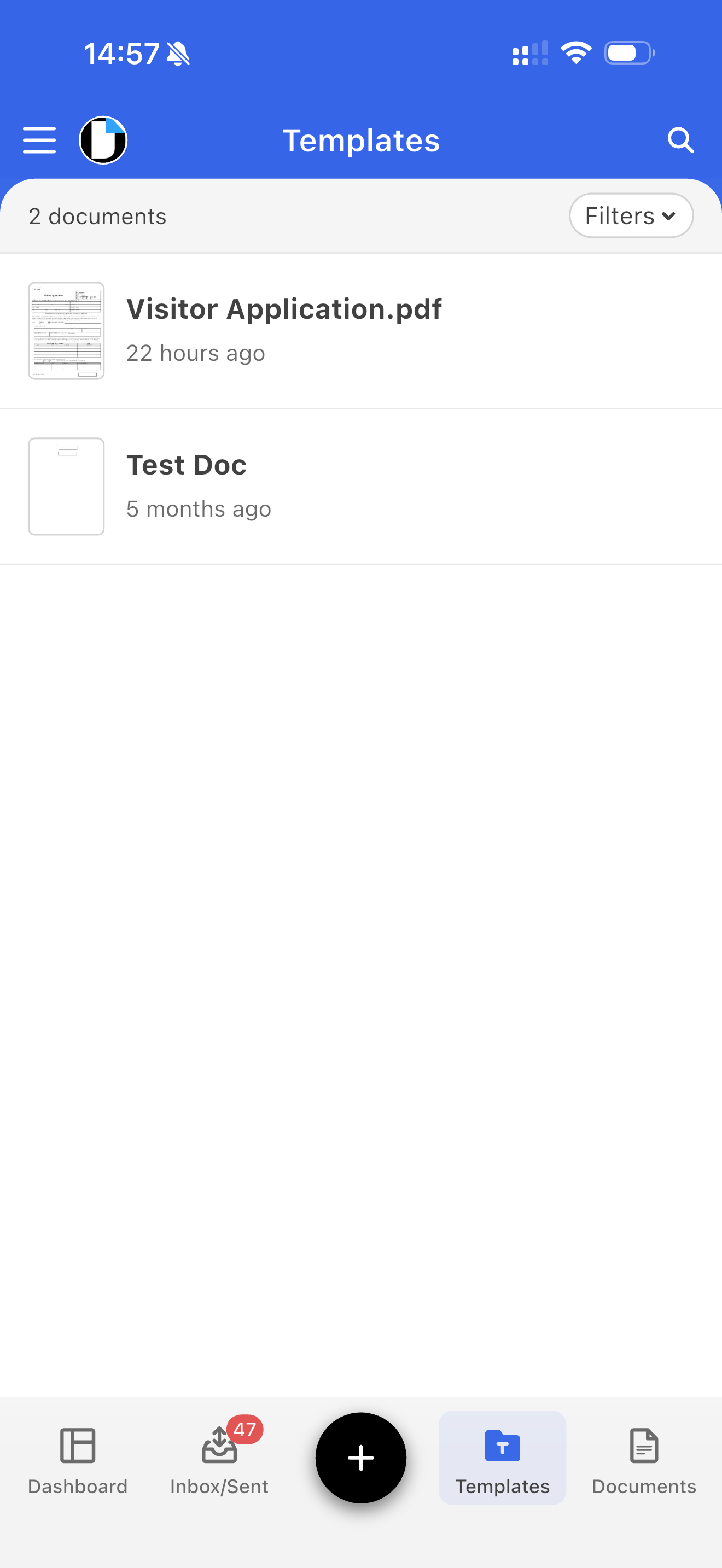
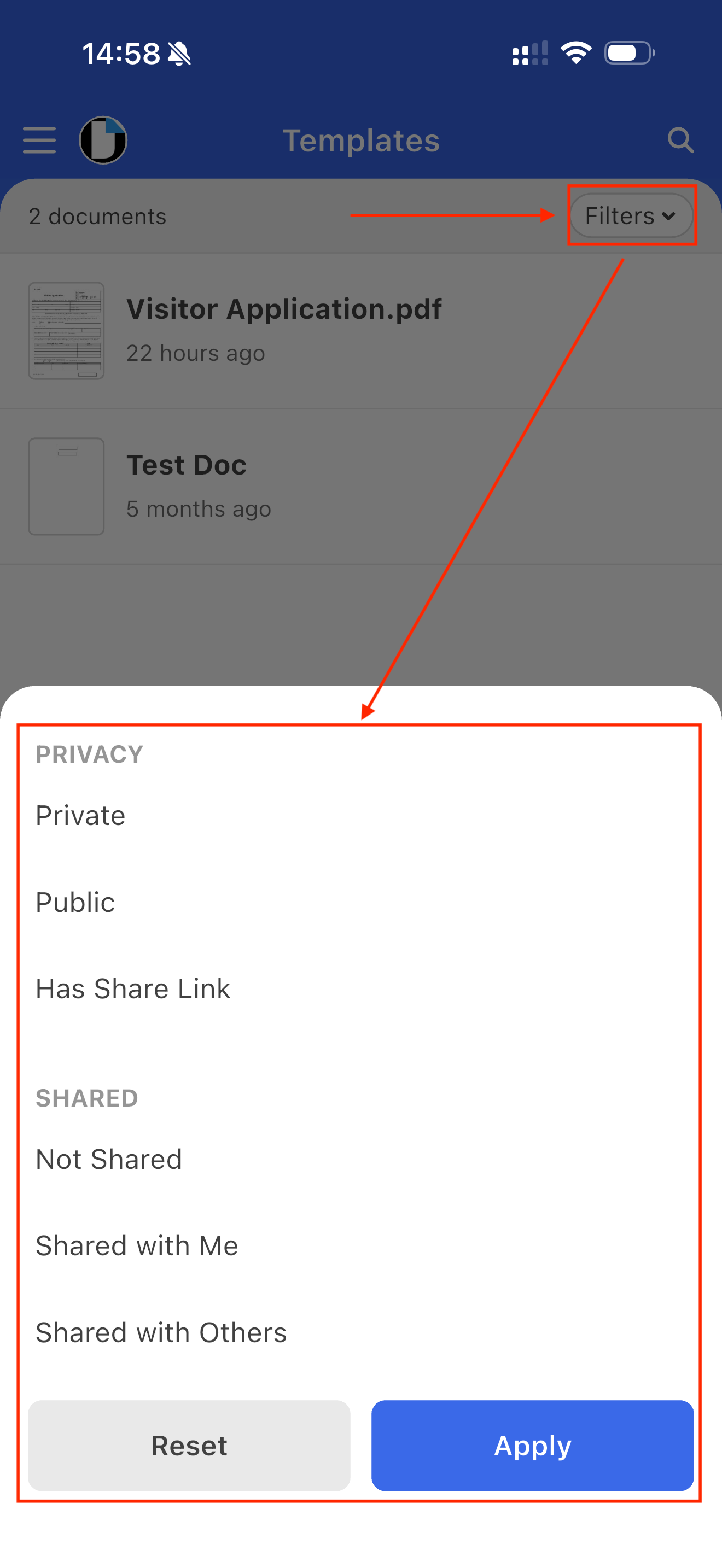
The templates you reuse for tasks and workflows are stored in the Templates folder. You can filter them by access level or share access by tapping the filter icon in the top-right.
Documents Folder
The documents you upload to DocHub will appear in the Documents folder. You can filter documents by access level or share access by tapping the filter icon in the top-right.
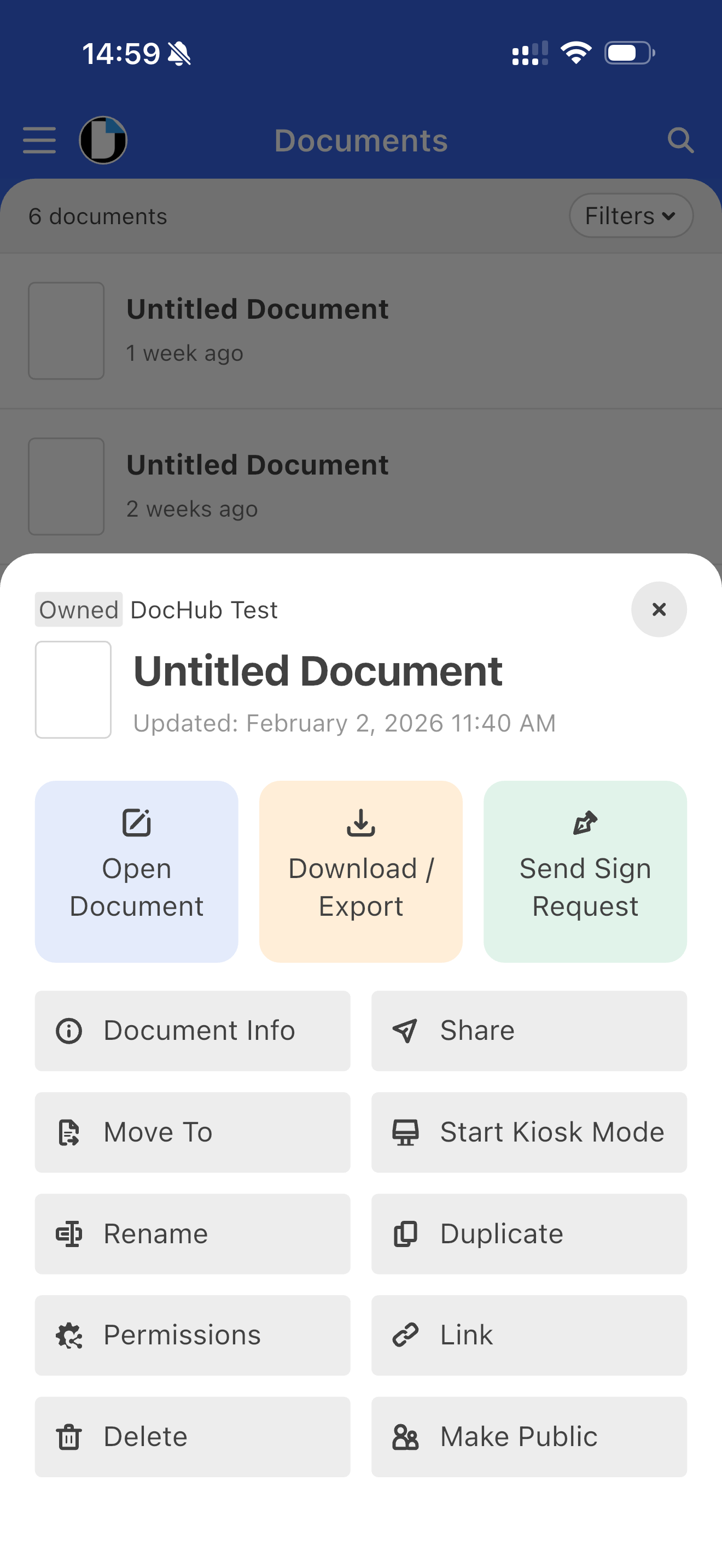
To start working on a document, tap it to open the menu of actions.
Action | Description |
Open Document | Open a document in the Editor |
Download/Export | Download a document to your device |
Send Sign Request | Prepare and send a document for signature |
Document info | View activity, ownership, permissions, and more |
Share | Export the document to one of your installed mobile applications |
Move to | Move a document to a folder |
Start Kiosk Mode | Prepare a document for signature where multiple signers need to sign the document without constant supervision |
Rename | Change a document's name |
Duplicate | Create a copy of a document |
Permissions | Add a collaborator to a document |
Link | Create a public link to a document |
Delete | Delete a document without the ability to recover it |
Make Public | Change the document's privacy to Public |
Upload documents
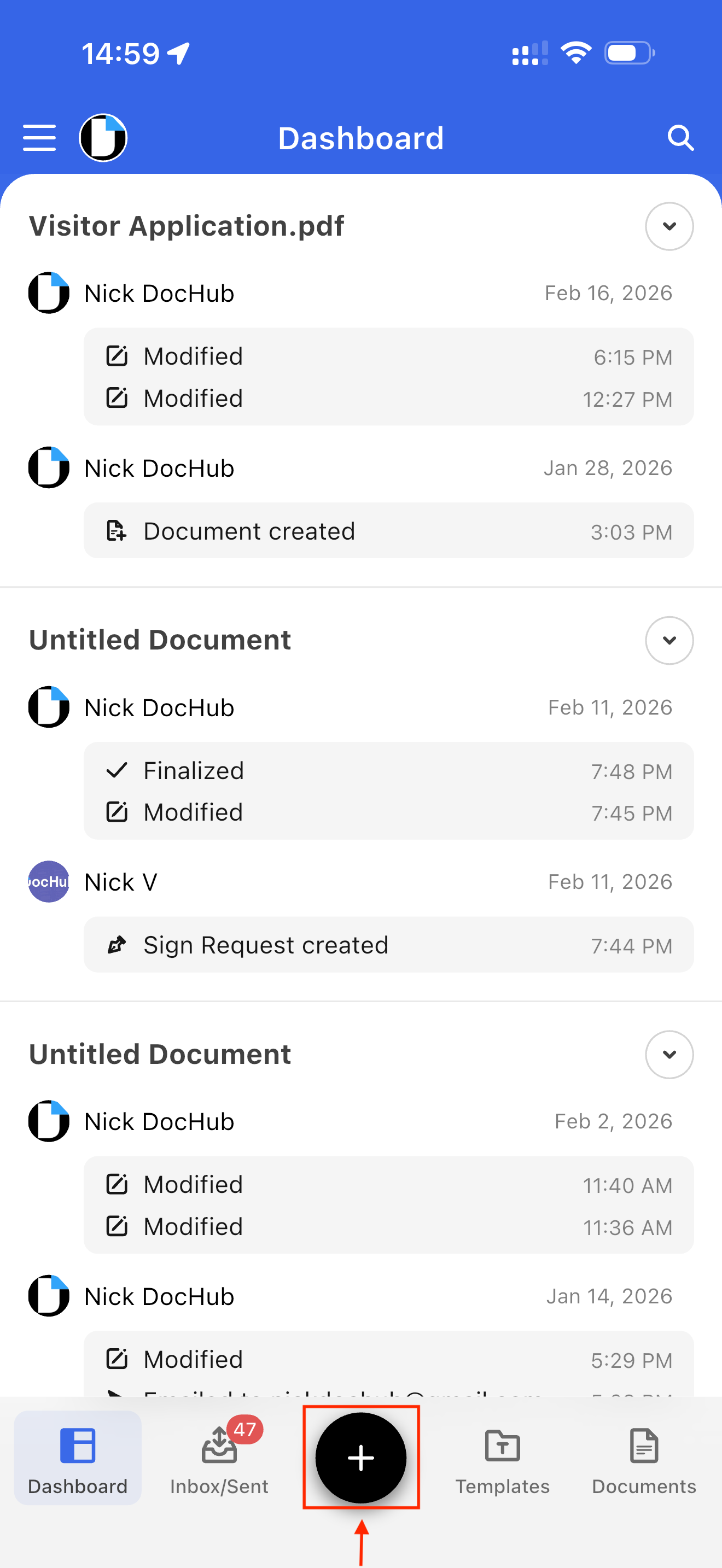
To upload a document to DocHub, tap ‘ + ‘ at the bottom. You will be given the option to select one of four upload options to proceed.
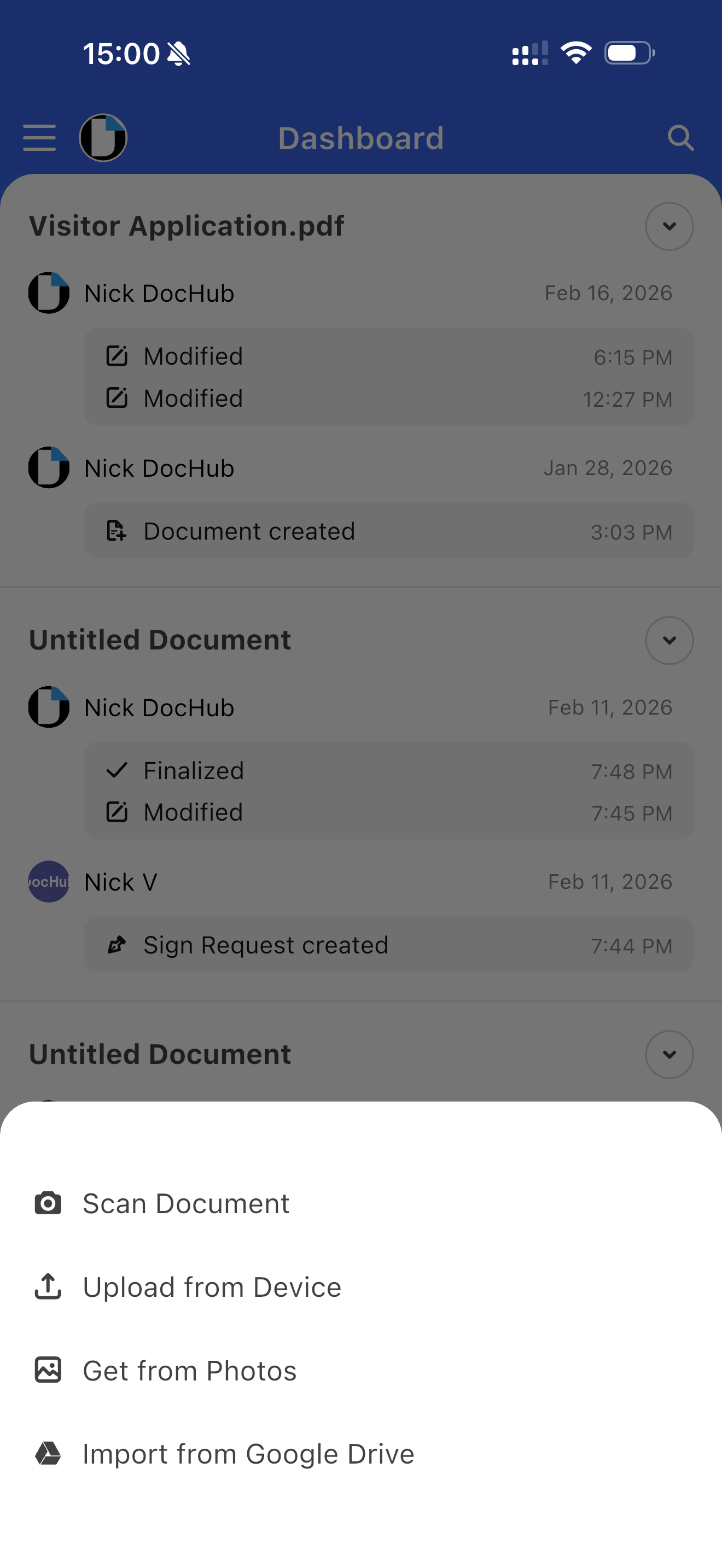
Uploading by Scanning the Document
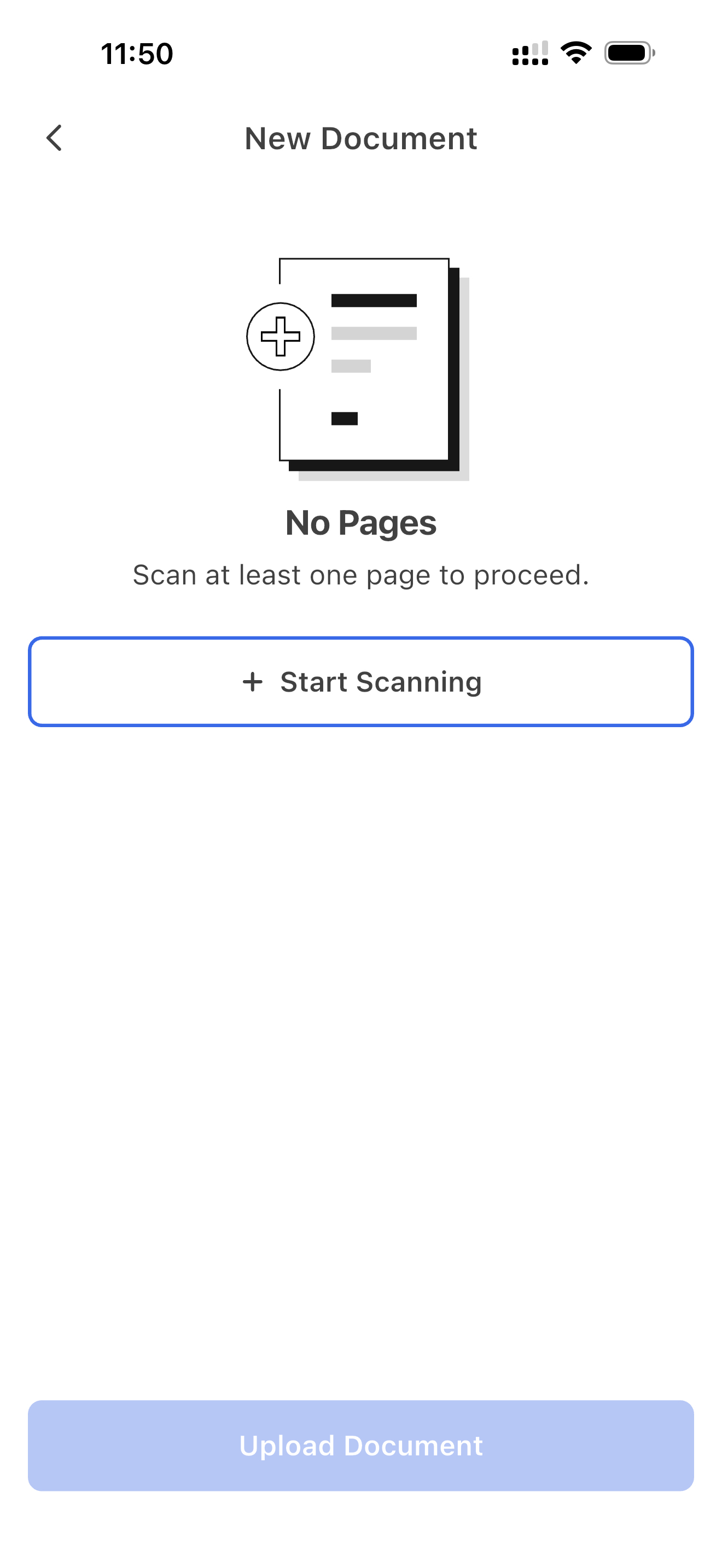
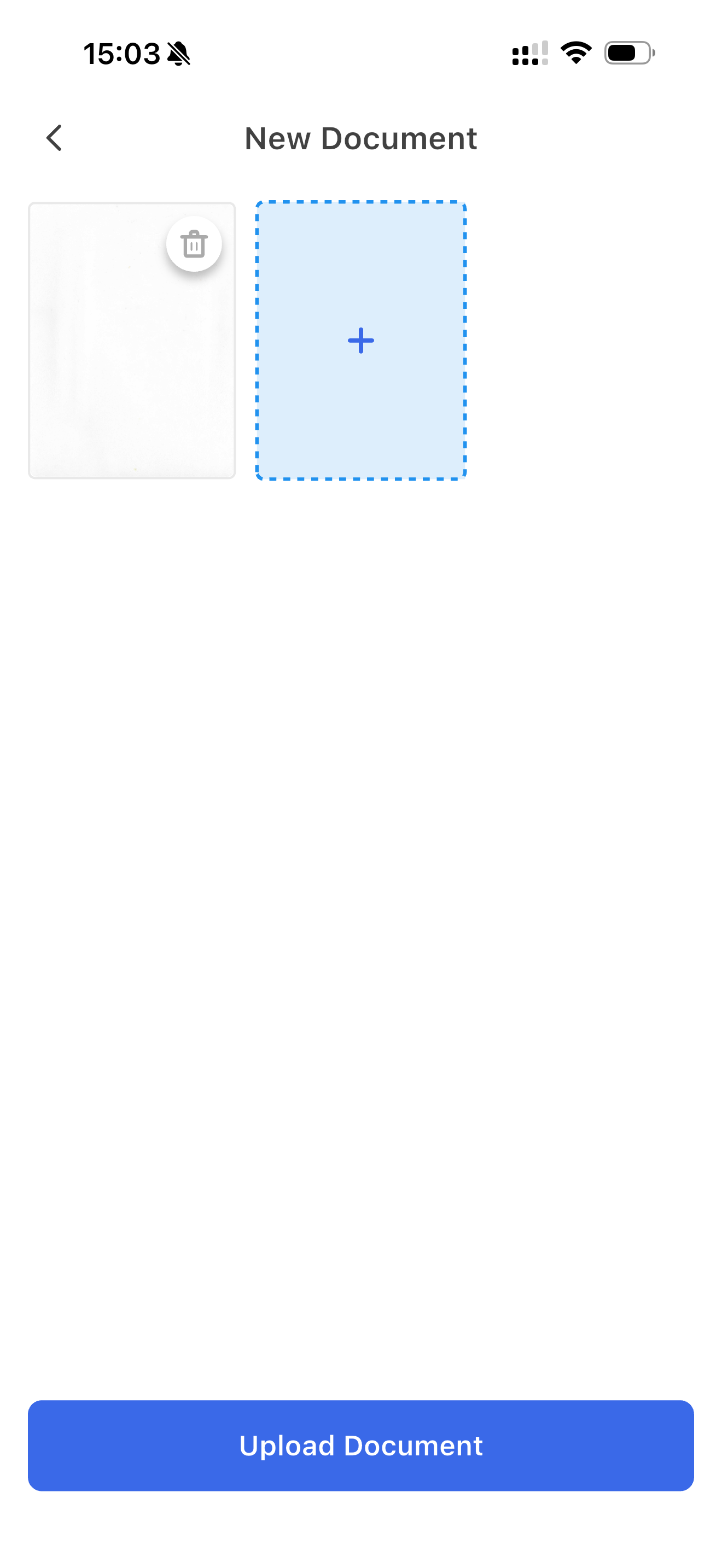
If you need to upload a hard copy file to DocHub, select the "Scan Document" option to scan it with your mobile phone camera.
Upload for Device/Get from Photos
Allows you to select files from your Photos app, such as screenshots and images, or upload a copy of the document from your default Documents folder.
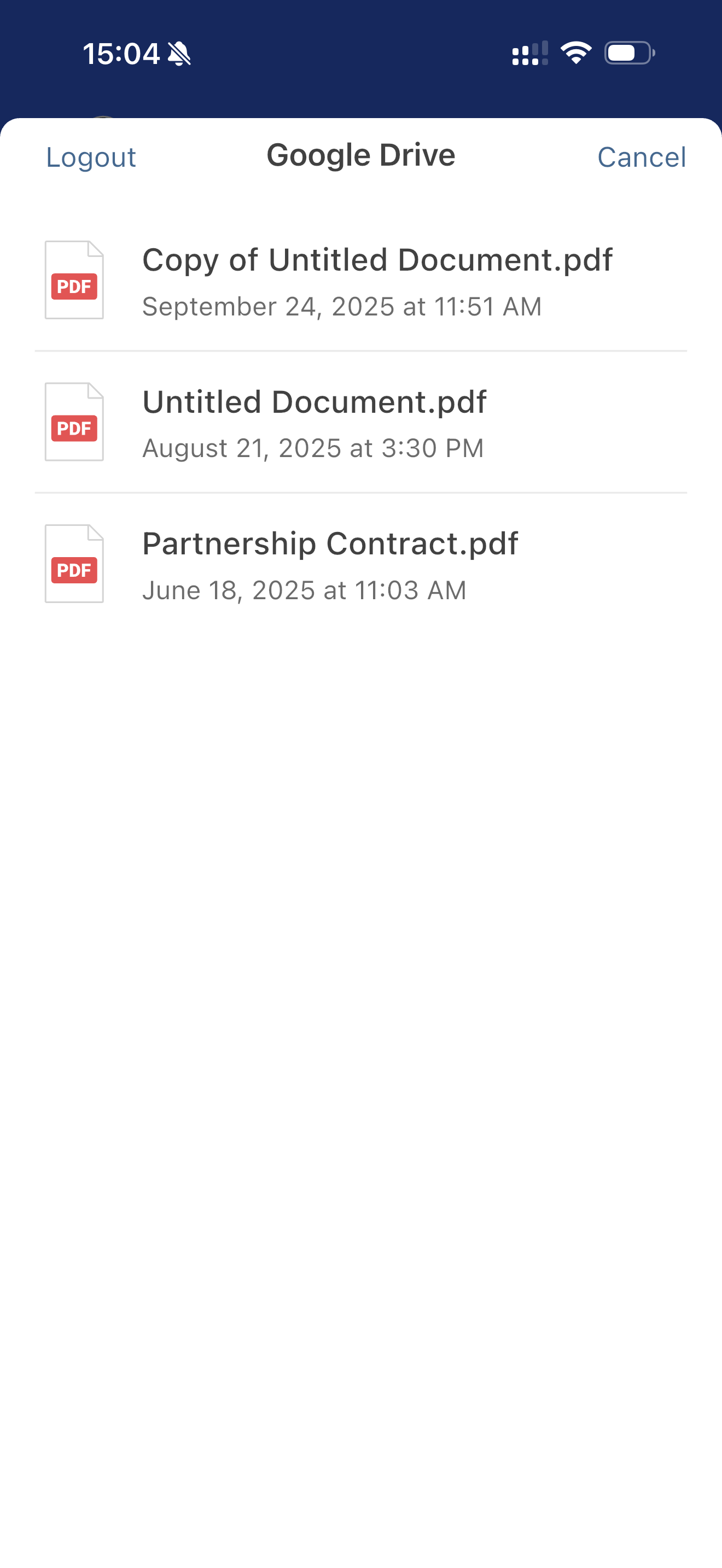
Uploading Documents from Google Drive
When you click the "+" button and then the "Import from Google Drive" option, you can select and upload a document directly from your Google Drive.
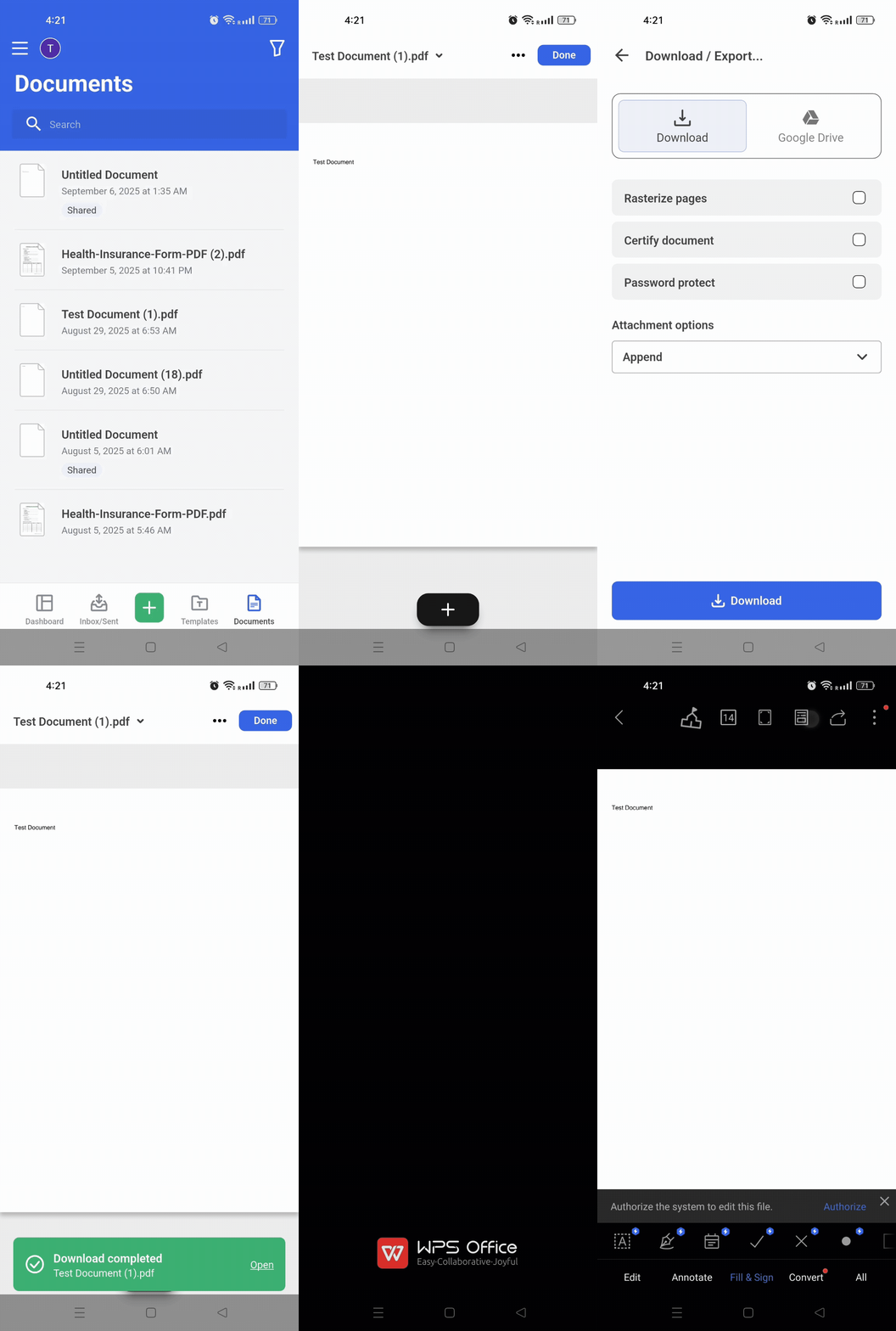
Export to Google Drive
Tap on the document you want to export, then select the "Download/Export" option. Toggle to "Google Drive" to see more options, such as how and where you want to save the document on your Google Drive, and even change the file name if you need to. Then tap the "Export to Google Drive" button to save the document. 
Download to your device
Toggle the Download option, then click the Open link once the download is complete to open the document in your device's default document viewer. From there, you can transfer it to the folder you need.
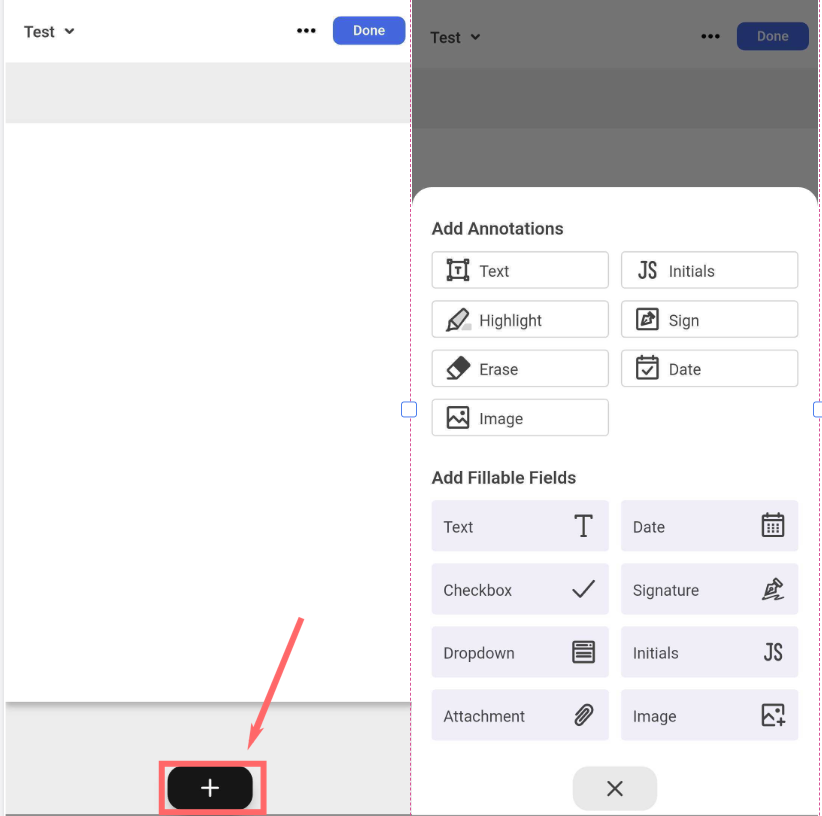
Documents Editor
The Document Editor lets you add text and signatures, annotate documents, highlight or erase content, and more. To use a tool, select one of the options that will appear after clicking the  button.
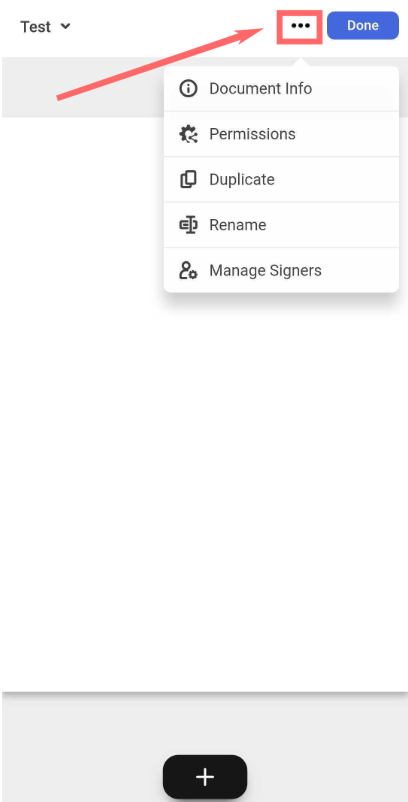
By tapping the "three dots icon" at the top right side, you can change your document’s name, see the document information, add collaborators, and duplicate the document.
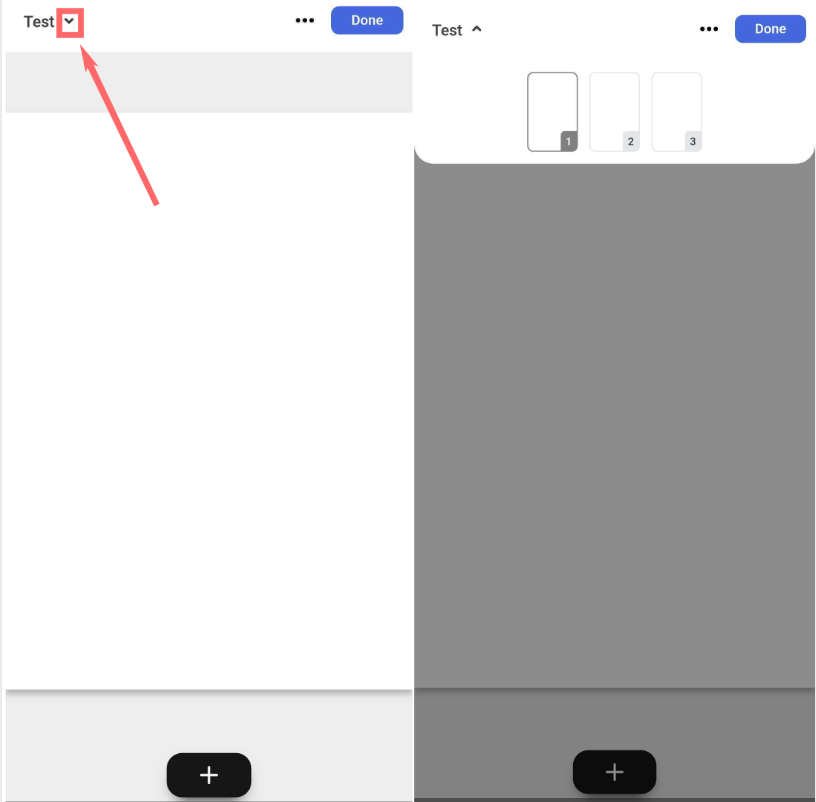
To go to other pages of your document, tap on the "drop-down button" next to your document name.
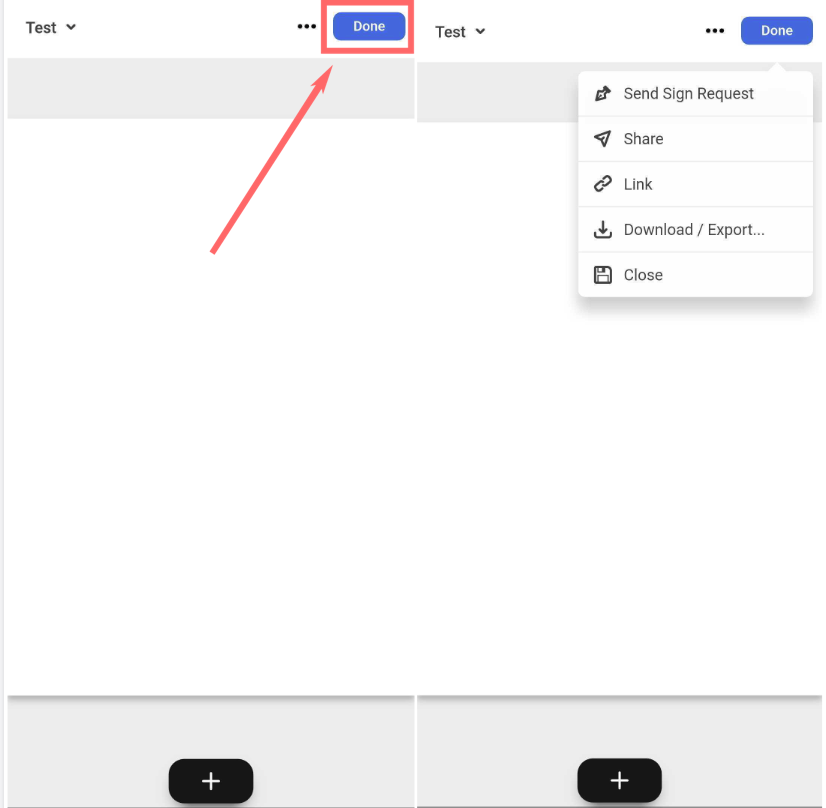
The "Done" button will provide you with the options to export the document, such as sending it for a signature request, exporting it as an attachment to your email, publishing a public link, downloading it to your device, or simply saving the changes or edits made.
The DocHub mobile app offers a wide range of features. Currently, some are only available in the web version. If you’d like to manage document pages, merge documents, add page numbers and labeling, or report an issue, please open DocHub on your desktop.