DocHub provides you with several options for sharing your PDF documents including two ways to send your documents via email as a PDF attachment. Here's how:
Open your document.
Click on the Share or Send
 button in the upper right corner.
Choose 'Send as Attachment'.
Fill out the To: field and use commas to separate multiple email addresses.
Customize the email text or PDF options as needed
Choose between the following two options
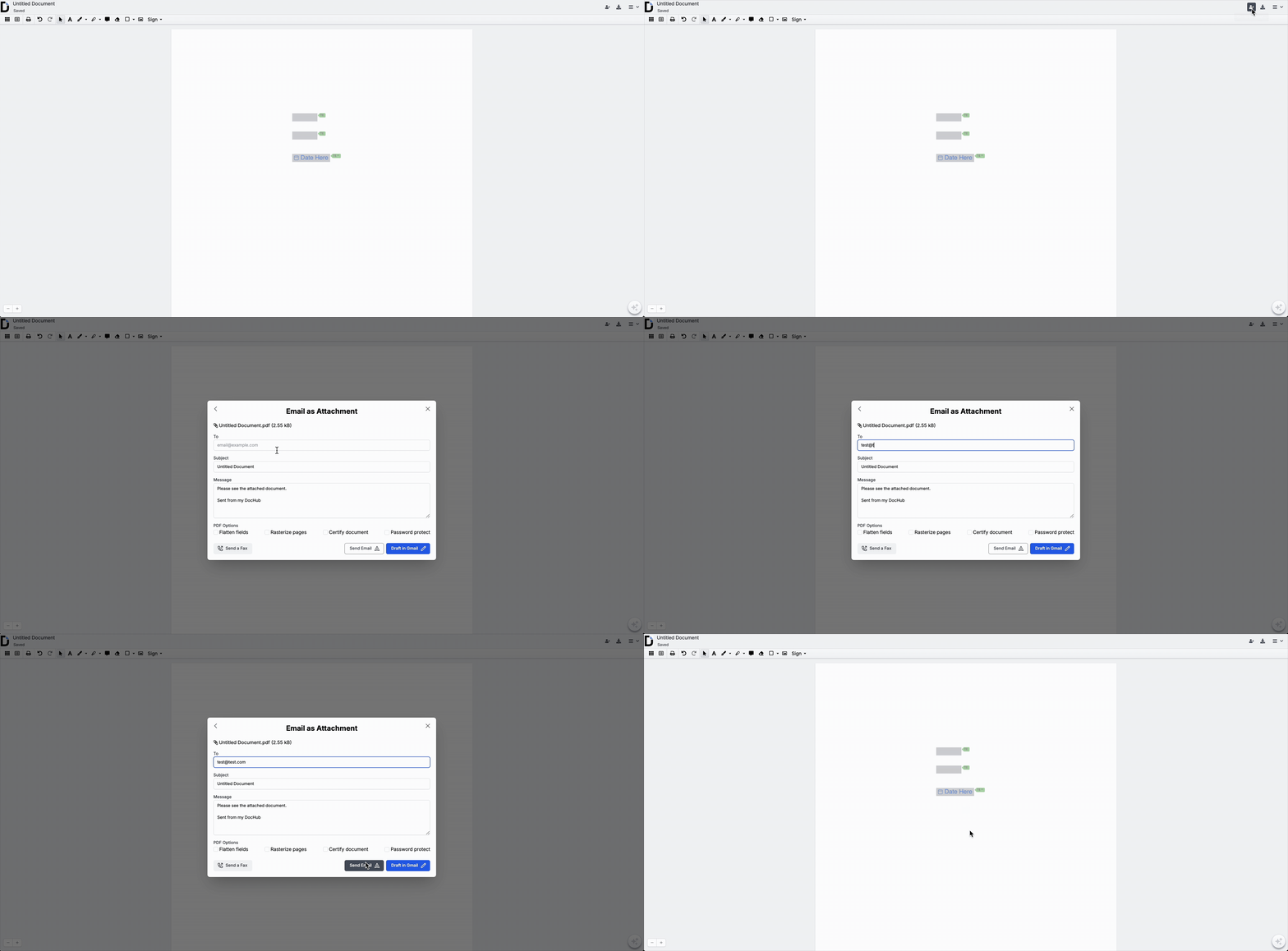
Send via DocHub
This will email your PDF attachment from no-reply@dochub.com with your email set as the Reply-To address.
The size limit for emailing documents in DocHub is currently 10 MB which includes both the size of the attachment plus the email itself.
To view a list of all of the documents you've emailed including the recipient's email address and customize your email footer that gets inserted at the bottom of all emails you send via DocHub, you can go to https://dochub.com/settings/email.
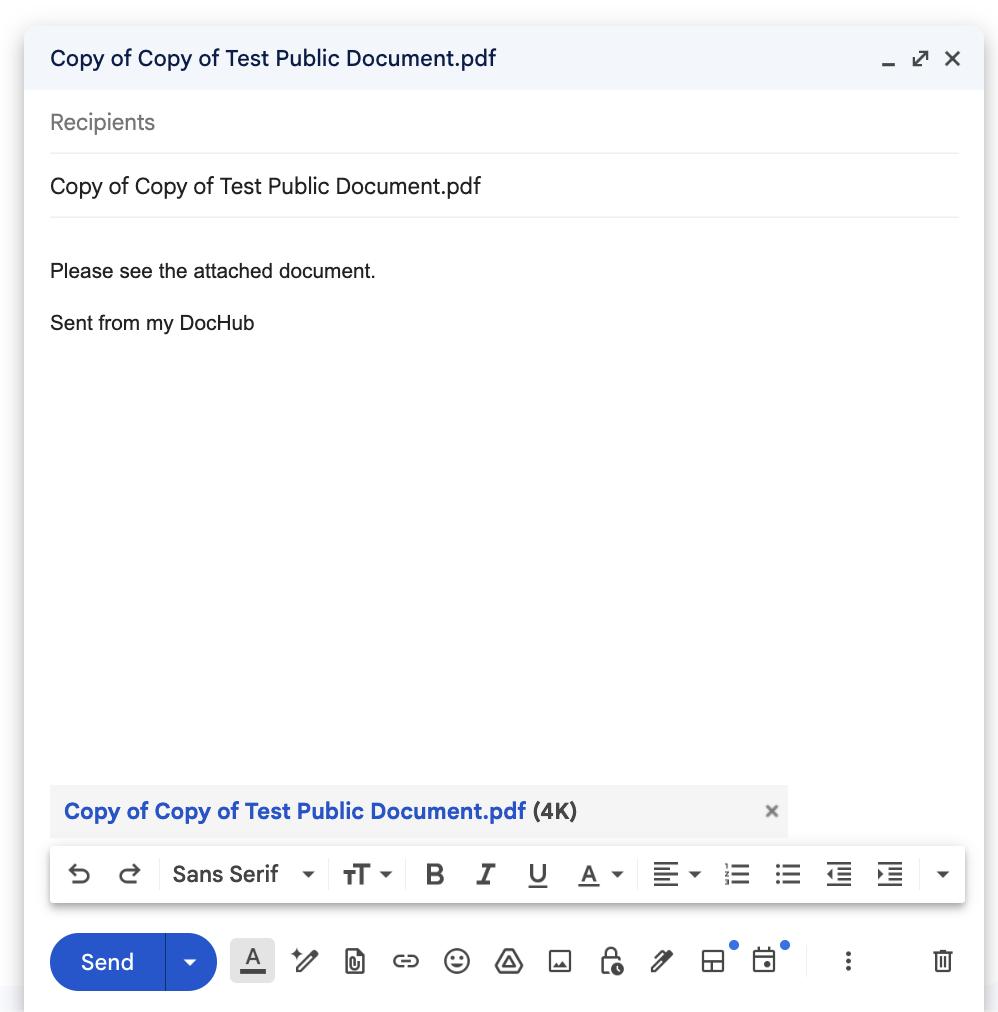
Attach to Draft in Gmail
DocHub will create a new Gmail draft for you with your PDF(s) attached.
PDF Options (Pro only)
If you have DocHub Pro, you'll be able to choose from these options before sending:

Flatten
Flatten fields (for PDF forms only)- locks all of the form fields and embeds them into the PDF as permanent text.
Rasterize pages - Renders any embedded page content such as text into images that can't be copied later.
Certify
Certify document - Embeds an Adobe compliant digital signature that certifies the creator of any signatures in your document and assures the document has not been altered after signing.
Encrypt
Password protect - add password encryption to your downloaded PDF.