Address Book
The Address Book keeps the people you send documents to in one place. Add contacts by hand, import a CSV file, or sync them from Google, Microsoft Outlook or iCloud. When you send or share a document, click Add from Address Book to pick recipients.
Personal Address Book: private, only you see it. Settings > Personal Settings > Address Book.
Organization Address Book: shared by all active members. Settings > your organization > Address Book. What you can change depends on your role.
The two books are separate: contacts and connected accounts in one never appear in the other.
The Address Book page
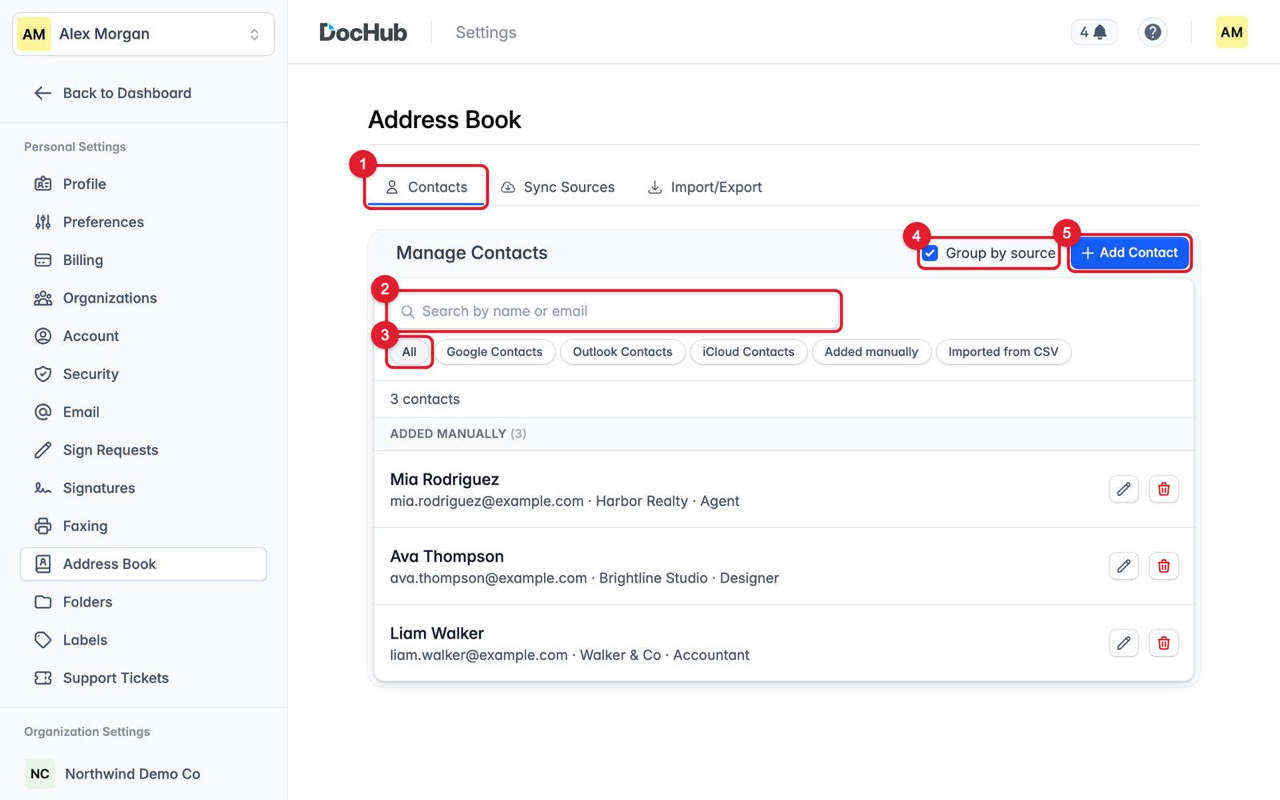
(1) Contacts tab. (2) Search by name or email. (3) Filter by source. (4) Group by source. (5) Add Contact.
Contacts - search, filter, add, edit, delete. 25 contacts are shown at a time; click Load more for the rest.
Sync Sources - connect Google, Outlook or iCloud.
Import/Export - import a CSV file or download all contacts.
Managing contacts
To | Do this | Good to know |
|---|---|---|
Add | Click + Add Contact, enter the email (required) and any other details, and click Add Contact. | Save and add another keeps the form open. Fields hold up to 255 characters. |
Edit | Click the pencil icon, change the details, click Save Changes. | Edits to a Google, Outlook or iCloud contact are replaced on the next sync. |
Delete | Click the bin icon, then Delete. | Cannot be undone. A synced contact can come back on the next sync. One contact at a time. |
Search | Type in the search box. | Matches first name, last name and email, not company. |
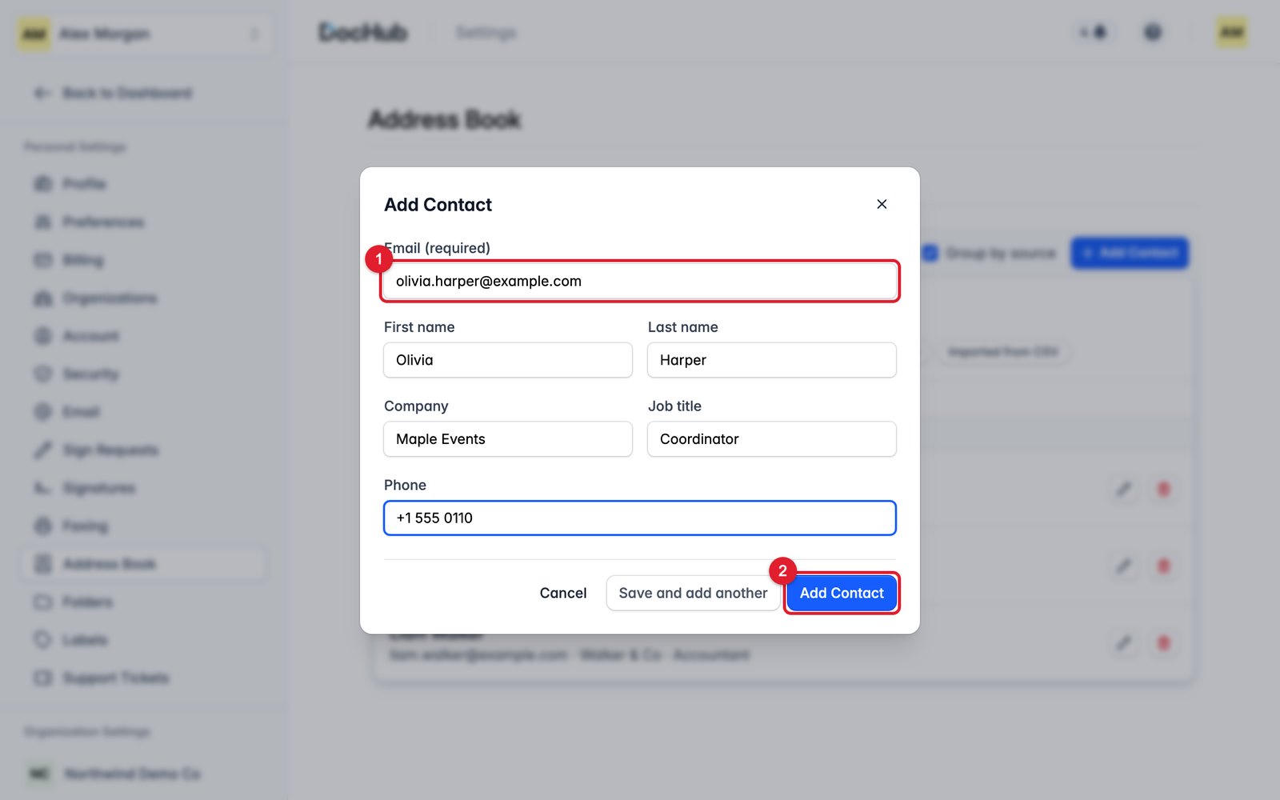
The Add Contact window: email (1) is the only required field, then Add Contact (2).
Import and export (CSV)
Columns: First Name, Last Name, Email, Company, Job Title, Phone. Any other column rejects the whole file. Use Download CSV Template.
Limits: .csv only (save Excel files as CSV first), up to 200 contacts per file, rows without an email are skipped.
Result: the Last import summary shows added, unchanged and skipped rows, with the reason for each skipped row.
Export: Export All Contacts downloads contacts.csv with every contact, whatever search or filter is active.
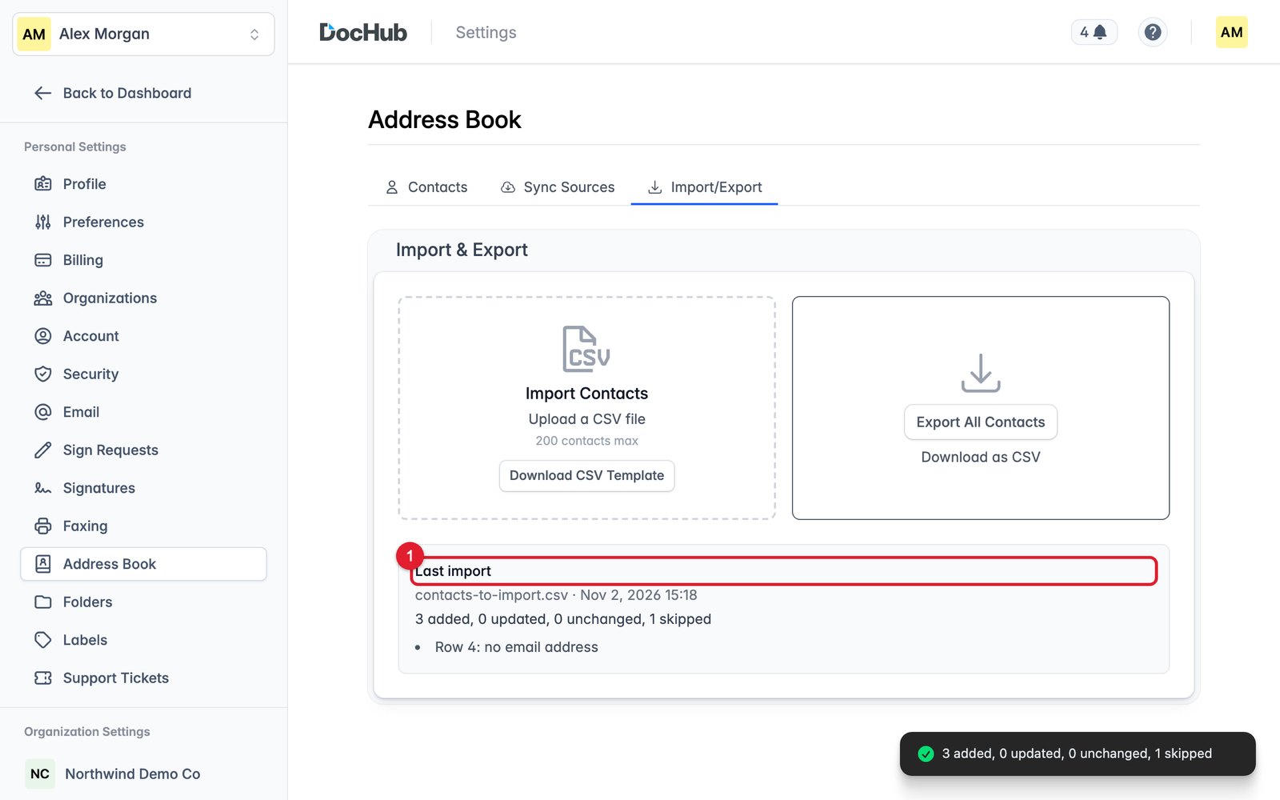
The Last import summary (1) after uploading a CSV file.
Syncing Google, Outlook and iCloud
DocHub only reads contacts: it never changes anything in the outside account. It syncs once after you connect; after that, click Sync now. Only contacts with an email are copied, up to 5,000 per sync for Google and Outlook. Each Address Book is connected separately.
Important: The account must use the same email address as your DocHub account. Otherwise DocHub shows an email-mismatch message.
Service | Connect | Disconnect |
|---|---|---|
Click Connect, sign in to Google and allow access to contacts. | Click Disconnect and confirm. If no other book uses the account, DocHub also loses access to your Google Drive and Gmail. | |
Outlook | Click Connect, sign in to Microsoft and allow access to contacts. | Click Disconnect and confirm. |
iCloud | Create an app-specific password at appleid.apple.com (needs two-factor authentication). Click Connect, enter your Apple ID and that password. | Click Disconnect. There is no confirmation step. |
Disconnecting affects only the book you are in and keeps the contacts already imported.
Statuses
You see | Meaning and what to do |
|---|---|
Syncing… / Importing contacts… | A sync is running. Wait up to a couple of minutes; you can keep working. |
Last sync: N added | The last sync finished. Shown for 24 hours. |
Not all contacts were imported (amber) | Too many contacts, or the sync stopped early. Click Sync now again. |
Connected, but the button says Connect | Access expired. Click Connect and sign in again. |
No contacts were found in your … account | The account has no contacts with an email. Check it is the right account. |
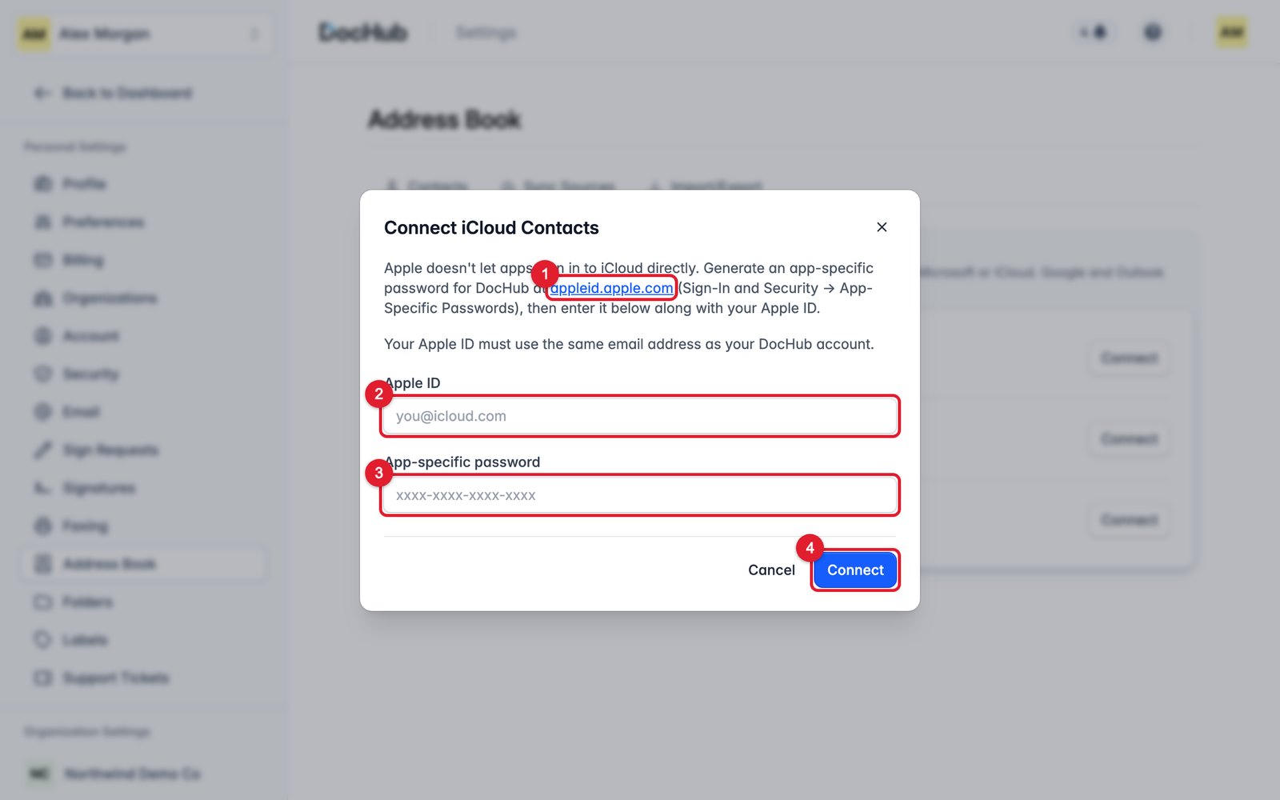
Connect iCloud Contacts: Apple link (1), Apple ID (2), app-specific password (3), Connect (4).
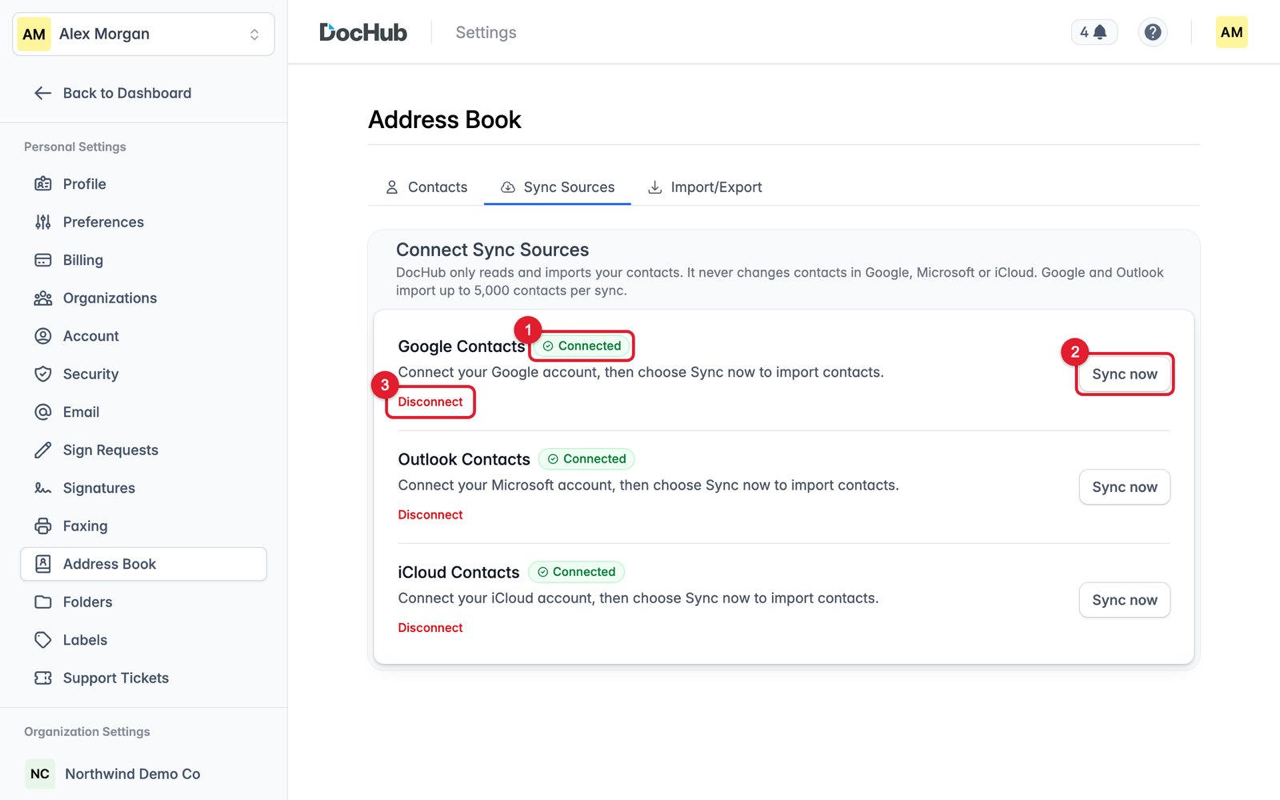
A connected account: Connected (1), Sync now (2) and Disconnect (3).
Organization Address Book and roles
Open Settings, click your organization under Organization Settings, then Address Book. Your role is shown as Your Access at the top right. Pending and suspended members cannot open it.
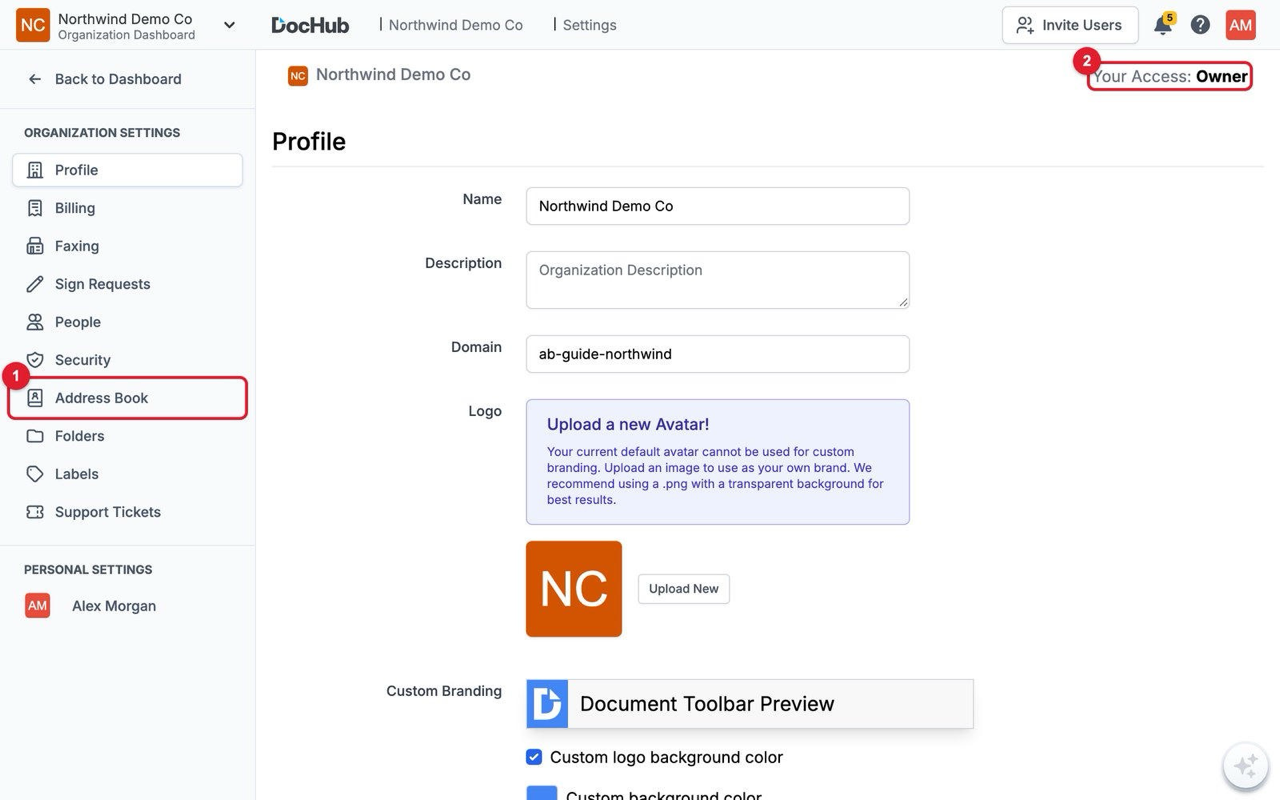
Address Book (1) in the organization menu, and Your Access (2).
Action | Owner | Admin | Content Manager | Agent | Viewer |
|---|---|---|---|---|---|
View, search, filter | Yes | Yes | Yes | Yes | Yes |
Add, import, export | Yes | Yes | Yes | Yes | No |
Edit or delete | Any | Any | Own only | Own only | No |
Connect own account | Yes | Yes | Yes | Yes | No |
In academic organizations, Content Manager is Teacher and Agent is Student.
Contacts a member imports or syncs count as added by that member.
Each member connects only their own accounts and sees only their own sync results. Synced contacts are visible to everyone.
A deleted contact is removed for everyone in the organization.
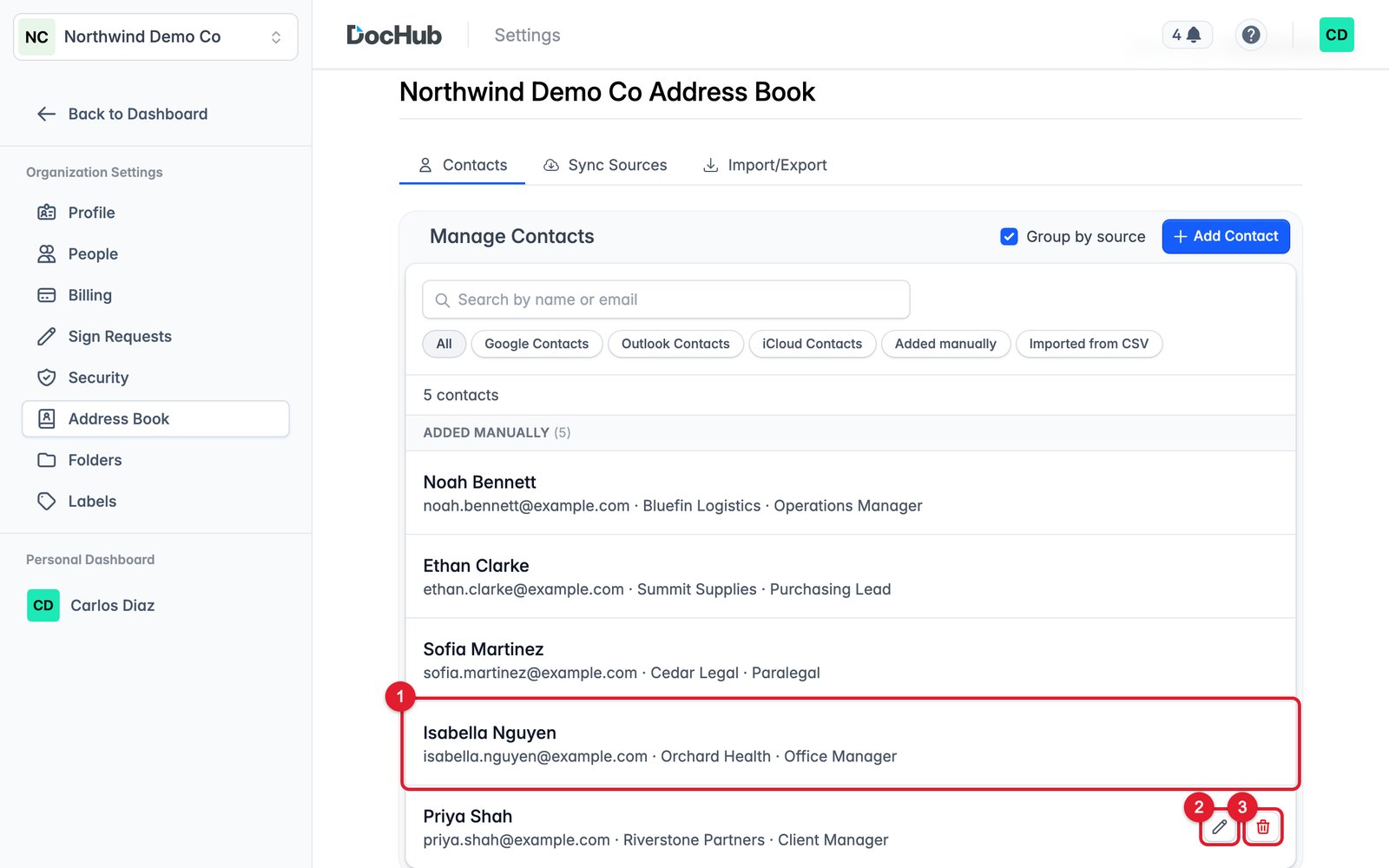
A Content Manager: no icons on a contact someone else added (1), Edit (2) and Delete (3) on their own.
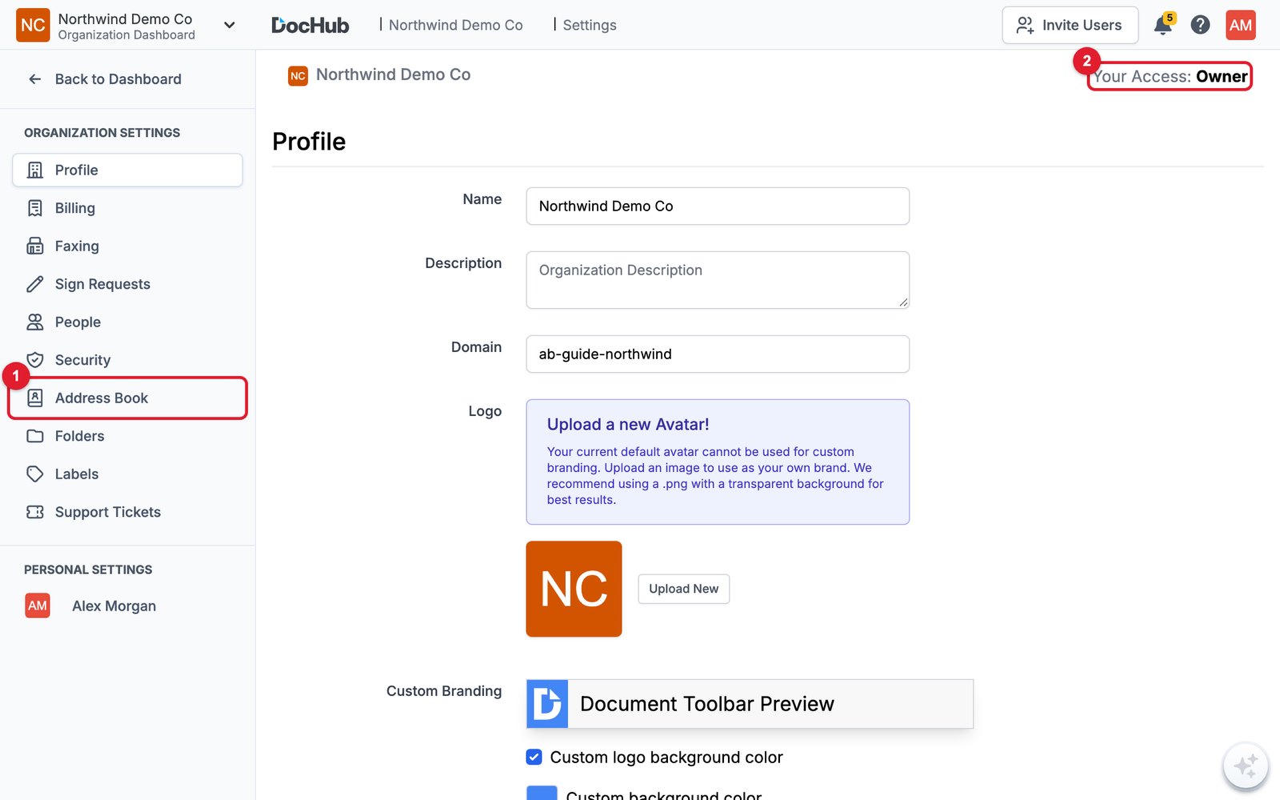
A Viewer (1) can look up contacts but has no Add Contact button, Import/Export tab or edit icons.
One book or both?
Action | Affects |
|---|---|
Add, edit, delete, import, connect, disconnect | Only the Address Book you are in. |
Disconnect the last book that uses an account | DocHub also forgets the stored sign-in. For Google, access to Drive and Gmail is removed too. |
Change a contact in Google, Outlook or iCloud | Every book connected to that account, after its next Sync now. |
Sending documents
Click Add from Address Book when sending for signature or sharing, tick contacts and confirm.
Organization documents show that organization's book. Your own documents let you choose any of your books.
Contacts already added are marked "Already added".
Your plan may limit signers per sign request. At the limit, no more contacts can be picked; upgrading to DocHub Pro raises it.