DocHub's AI Assistant completely upgrades how you handle inline text edits. Instead of relying on manual whiteout and retyping, selecting a block of text with the Edit Text tool opens a contextual menu of rapid-action AI shortcuts.
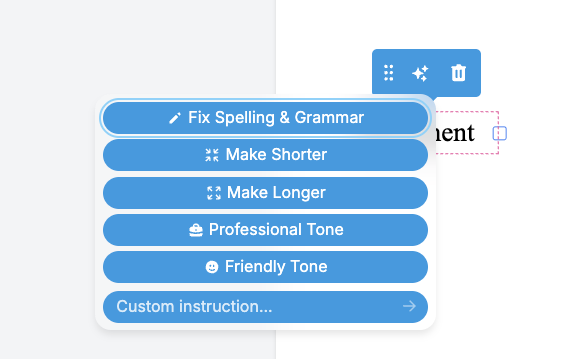
Let's review new features and options that can be utilized with this addition:
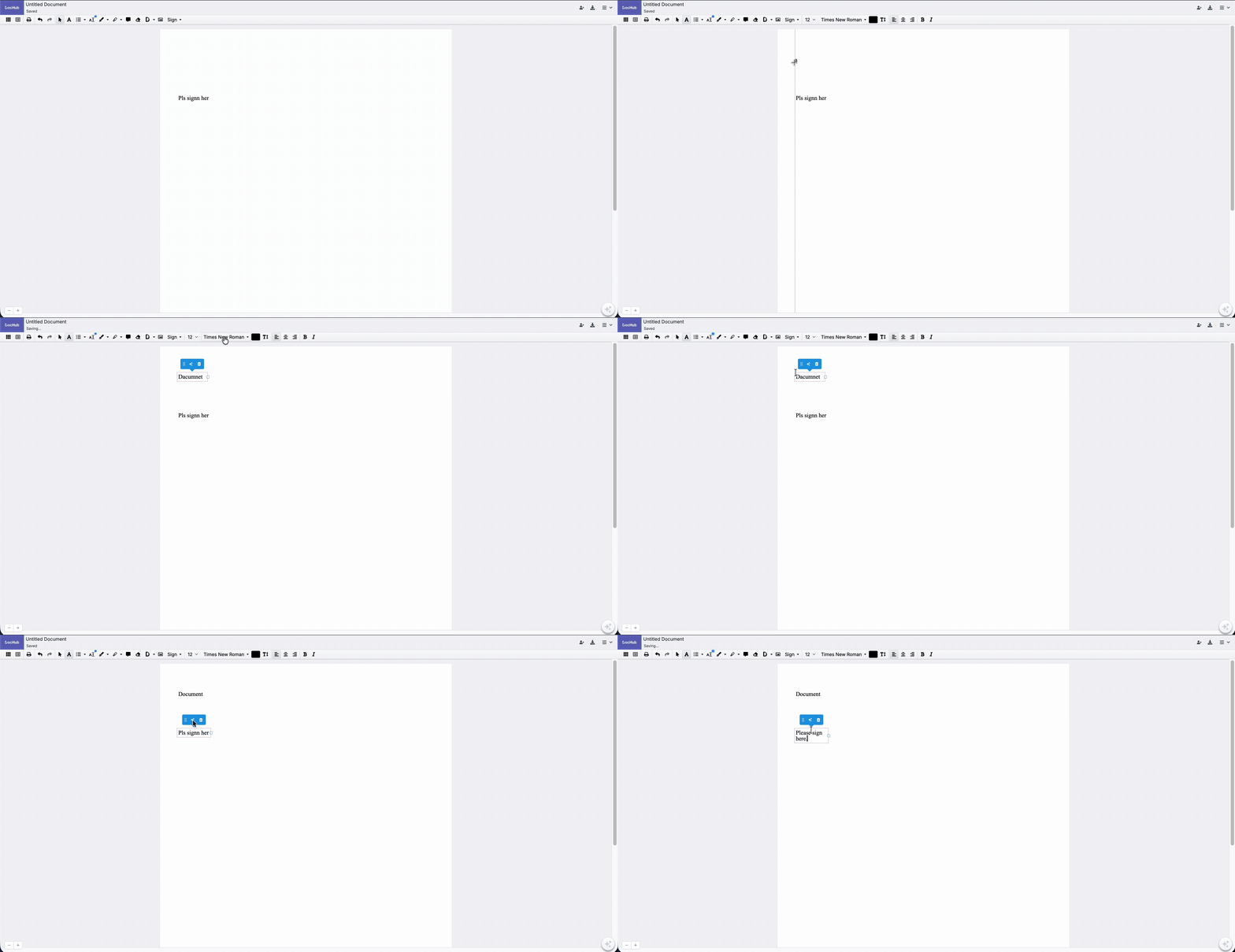
Fix Spelling and Grammar
This functions as an intelligent, context-aware spell-checker. Traditional PDF editors cannot natively catch typos because the text layer is frozen. This tool actively scans the selected block for syntax errors, missing punctuation, and spelling mistakes.
This option best fits cases such as cleaning up rushed client notes, fixing drafting typos in contracts, or validating scanned agreements after running them through text recognition.
Make Shorter
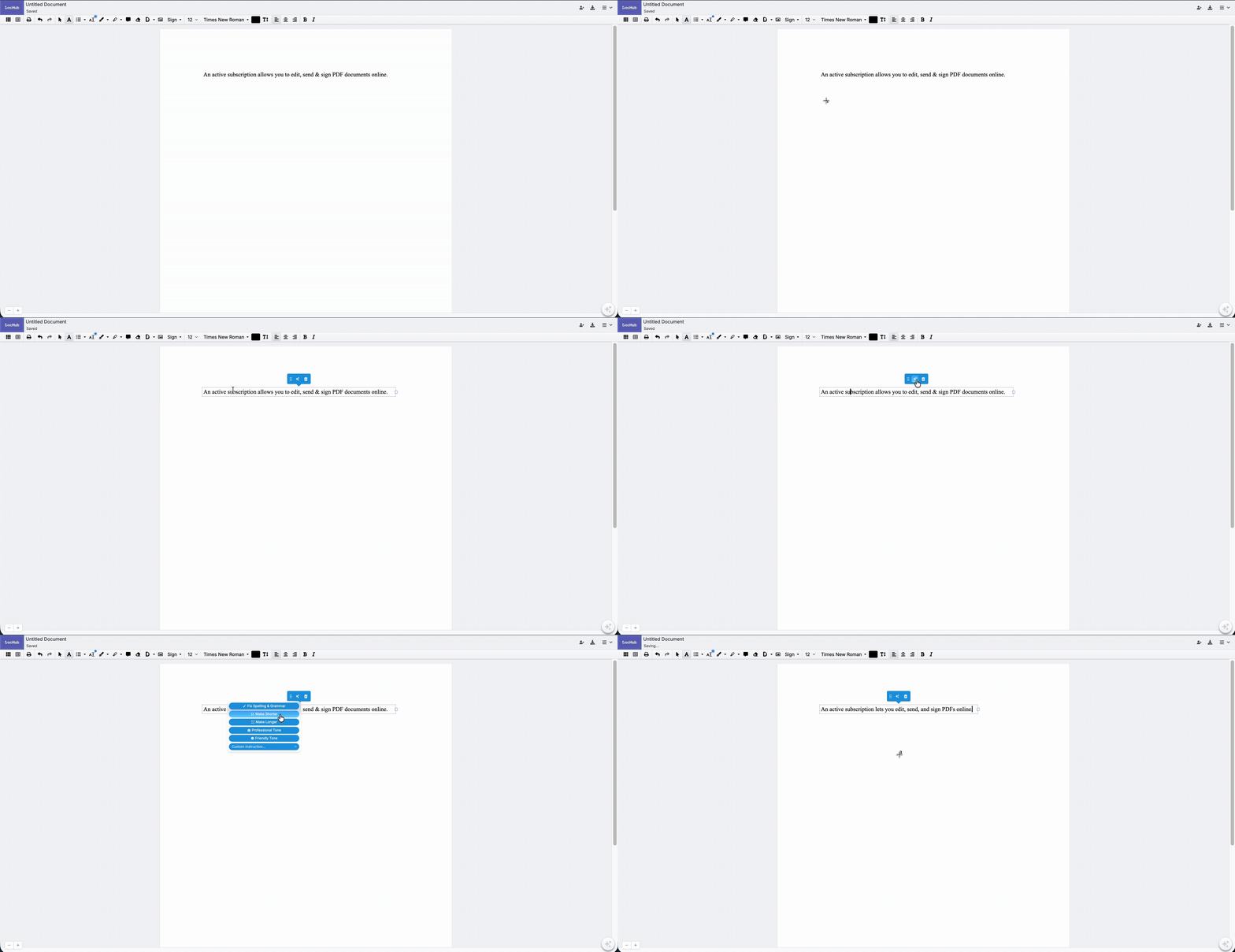
Condenses the highlighted passage by stripping out fluff, repetitive phrasing, and filler words. It preserves the core meaning while optimizing for tight structural margins.
From now on, long paragraphs can be adjusted much faster and fit cleanly into rigid, predetermined PDF text boxes or layout constraints without messing up the rest of the document's alignment.
Make Longer
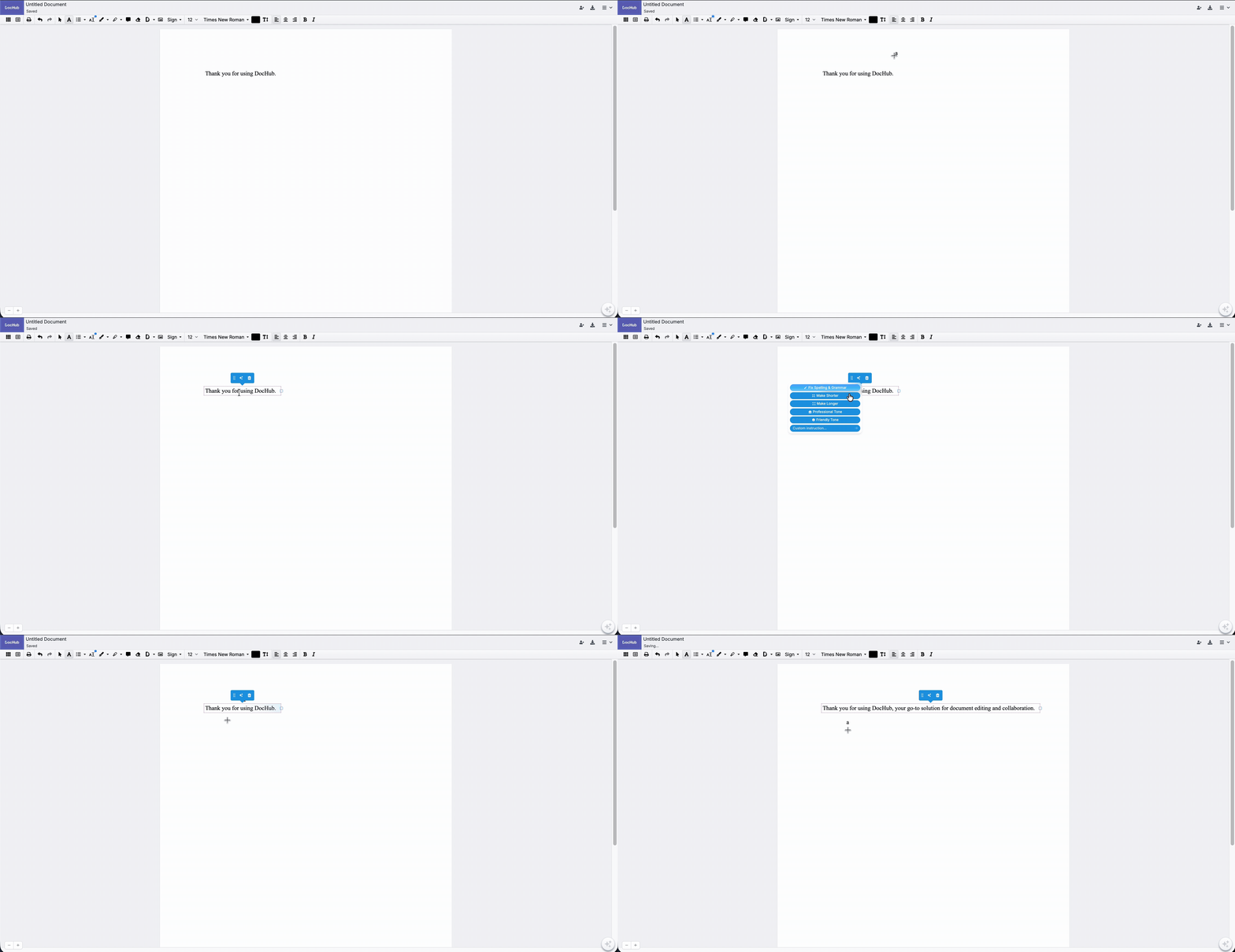
Fleshes out bullet points, brief notes, or fragments into fully articulated sentences. The AI extrapolates on the core thought, using professional vocabulary to create a more comprehensive text block.
It helps you to turn minimal internal feedback or rough contractual outlines into standard, detailed clauses.
Professional Tone
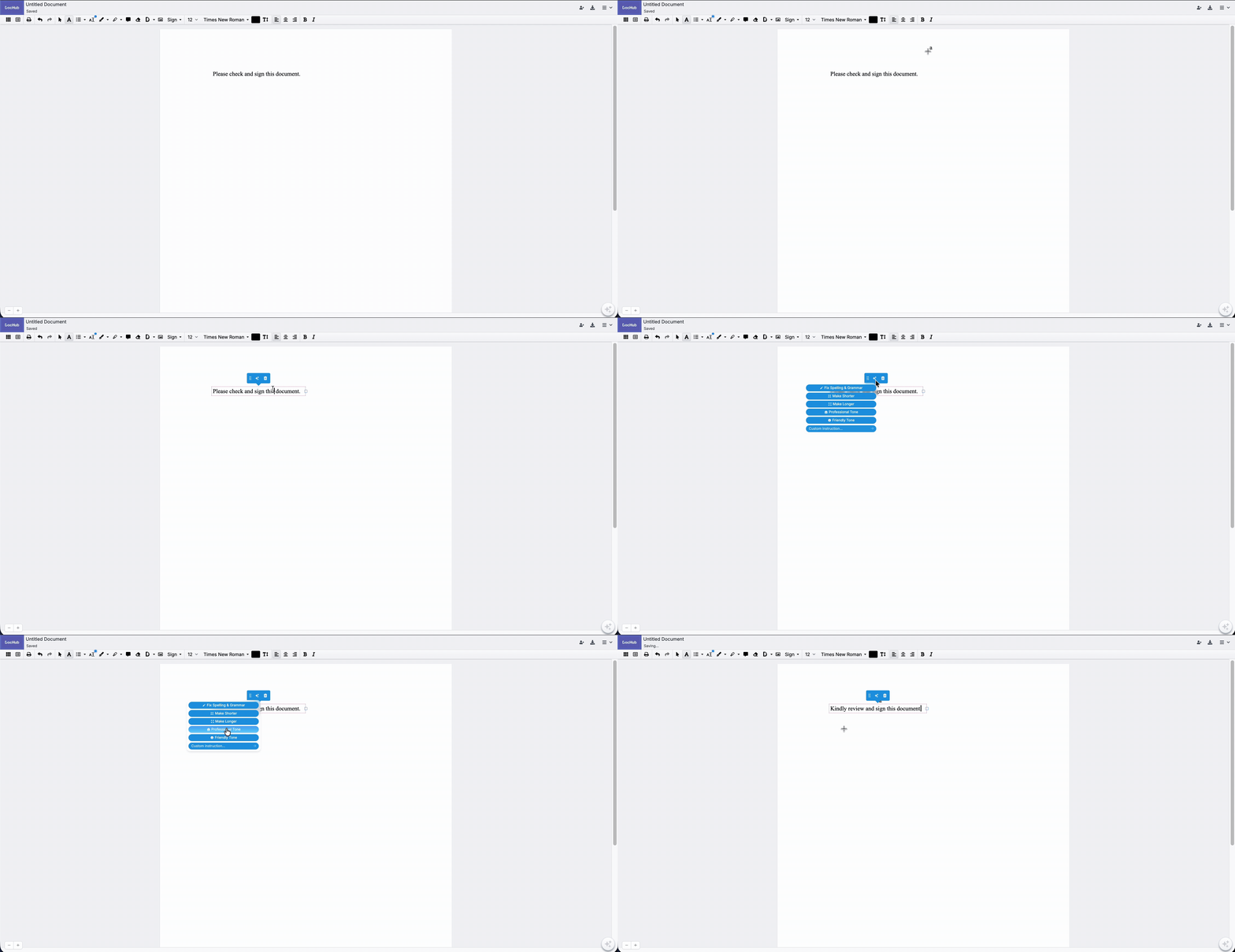
Rewrites casual or conversational phrasing into formal, industry-standard language. It automatically swaps informal verbs for corporate vocabulary and restructures sentences to sound objective, precise, and authoritative.
Designed for polishing business proposals, drafting legal addenda, or preparing customer-facing documentation.
Friendly Tone
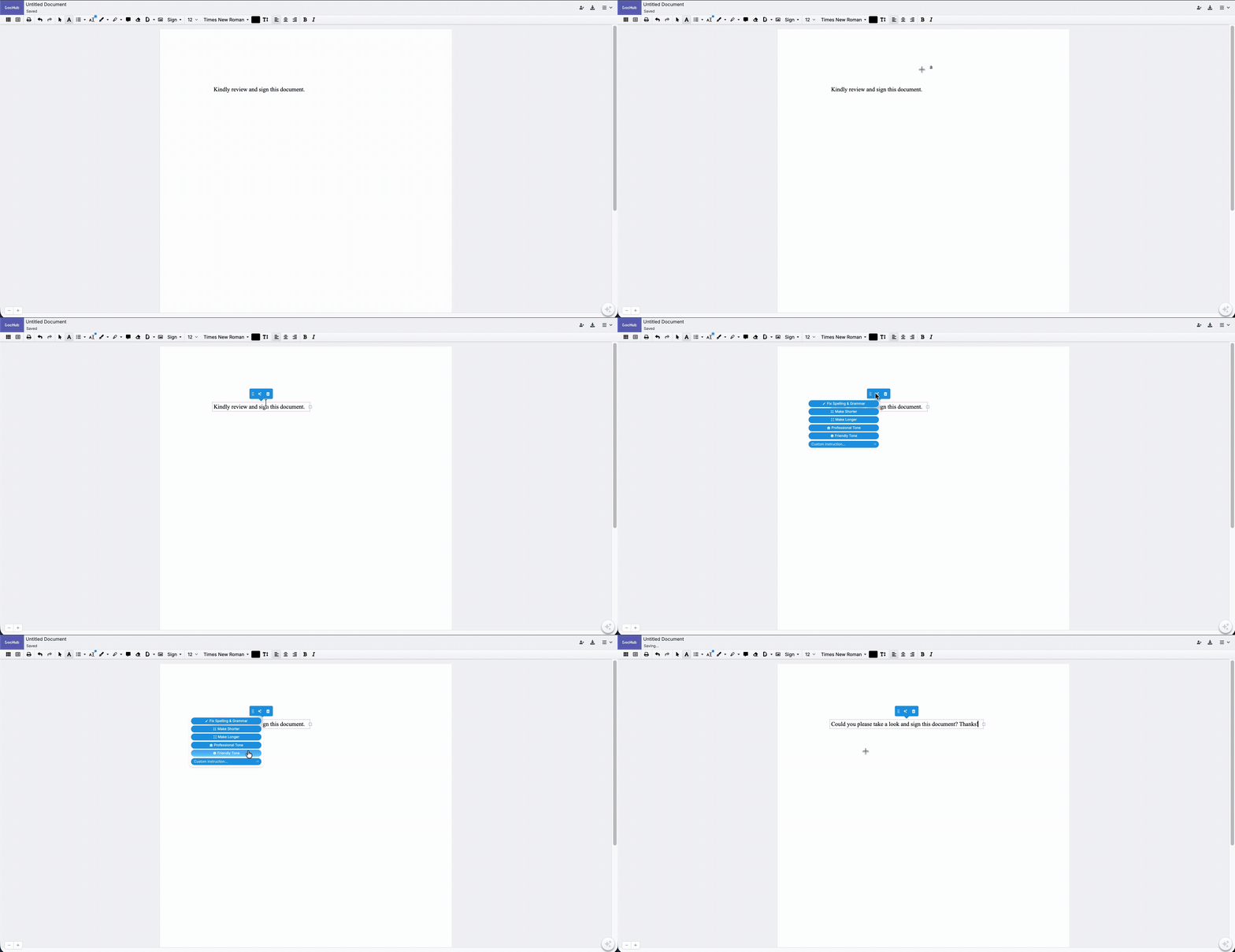
Softens rigid, overly technical, or cold wording. It infuses the text with a warm, approachable vibe while ensuring the underlying meaning and instructions remain accurate.
HR paperwork, welcome letters, student feedback forms, or internal team announcements — do not hesitate to run through such files with this option to see if there is room for improvement.
Custom Instruction
This blank-slate prompt window lets you give the AI specific, highly targeted commands for how it should alter the highlighted text.
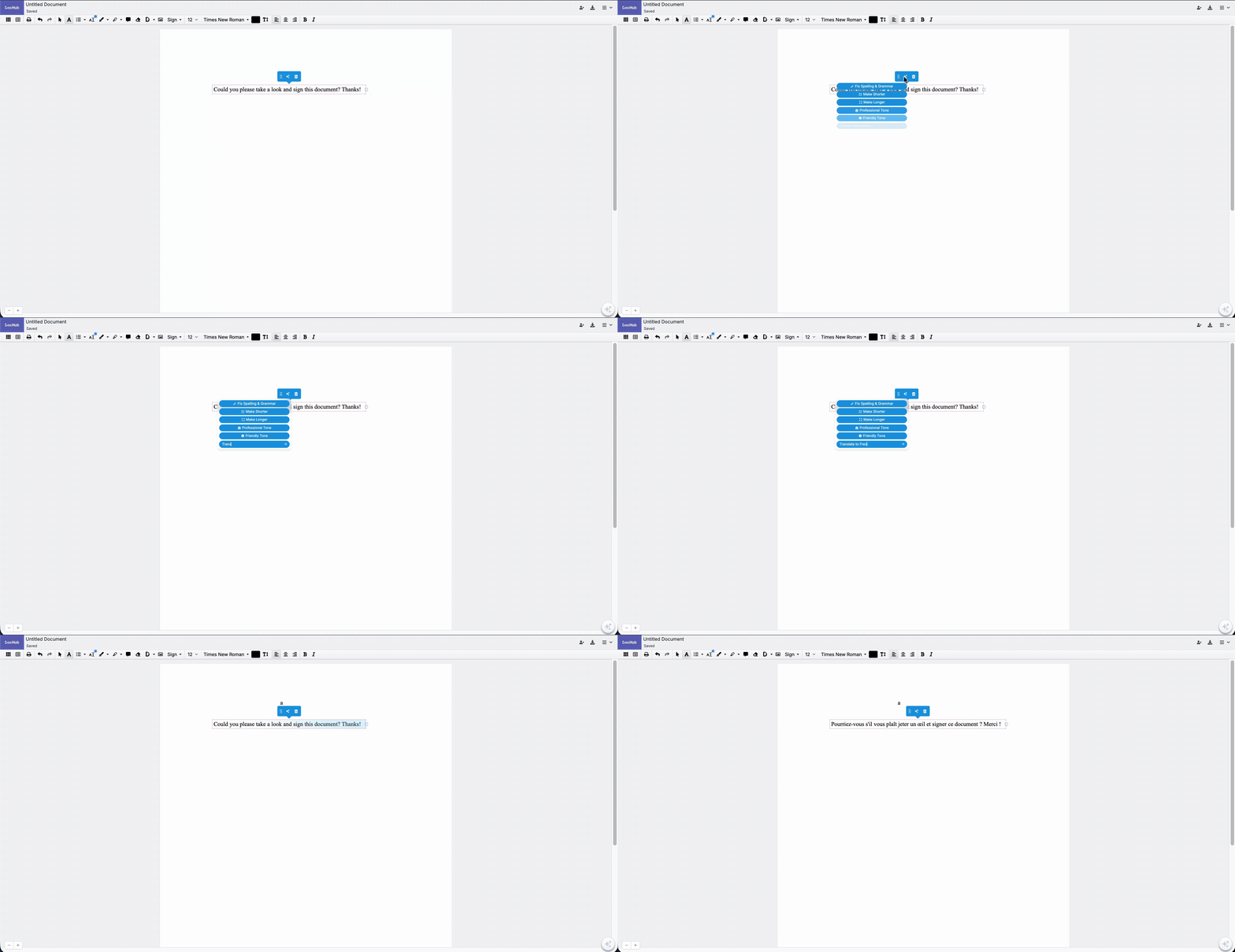
Here are some examples of custom Instructions:
"Translate this text block into Spanish, keeping the exact same line lengths."
"Rephrase this clause to look like a strict, binding non-disclosure penalty."
"Rewrite this block as an easy-to-read numbered list instead of a solid paragraph."
"Change all active voice references here to passive voice."
Please note that while the tool is incredibly flexible, there are a few built-in technical guardrails you need to keep in mind:
The AI Assistant cannot rewrite your entire document based on a single instruction in a text box. It is localized—it only has permission to alter the specific text you highlighted on that particular page
Massive walls of text passed into custom commands can occasionally cause time-out errors or truncate the generated response if it overloads the target text box's reflow framework.
The AI Assistant can generate the perfect words, but if the text box has strict layout restrictions, expanding text too much via custom prompts might overflow the visual margins of your PDF page.