DocHub’s Visual Edit brings context-aware AI text editing directly onto your document canvas. Instead of manually whiting out frozen PDF text and retyping from scratch, you can select any text block to transform, condense, translate, or reformat it in real time.
Key Features of Visual Edit
Fix Spelling & Grammar: Actively scans the frozen PDF text layer for typos and syntax errors to fix them in line.
Make Shorter / Make Longer: Condenses long paragraphs or expands brief notes while keeping text fitted within strict document text-box margins.
Tone Adjustments: Instantly rewrite content into a Professional Tone (ideal for contracts and legal addenda) or a Friendly Tone (ideal for client notes and welcome letters).
Custom Prompts: Type tailored commands into the custom instruction field (e.g., "Translate this paragraph into Spanish" or "Convert this block into a bulleted list").
How to Use Visual Edit
Open Your Document: Upload or select your document in the DocHub editor.
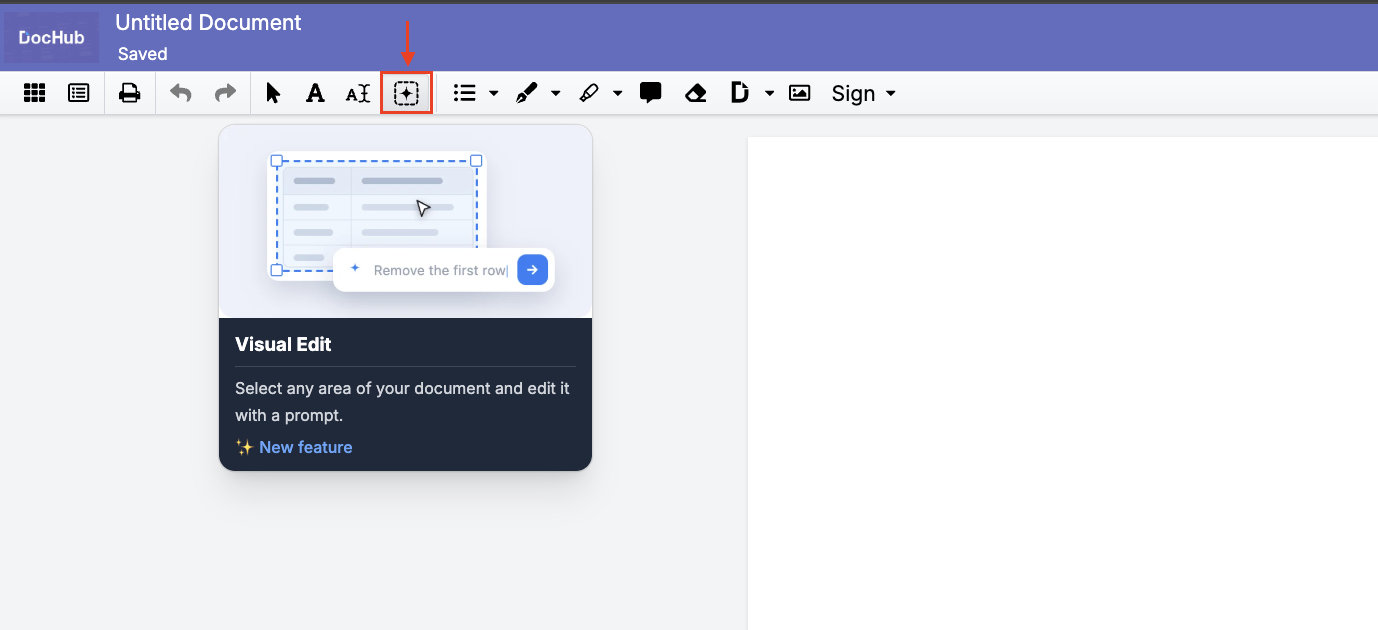
Select the Visual Edit Tool: Click Visual Edit on the main top toolbar.
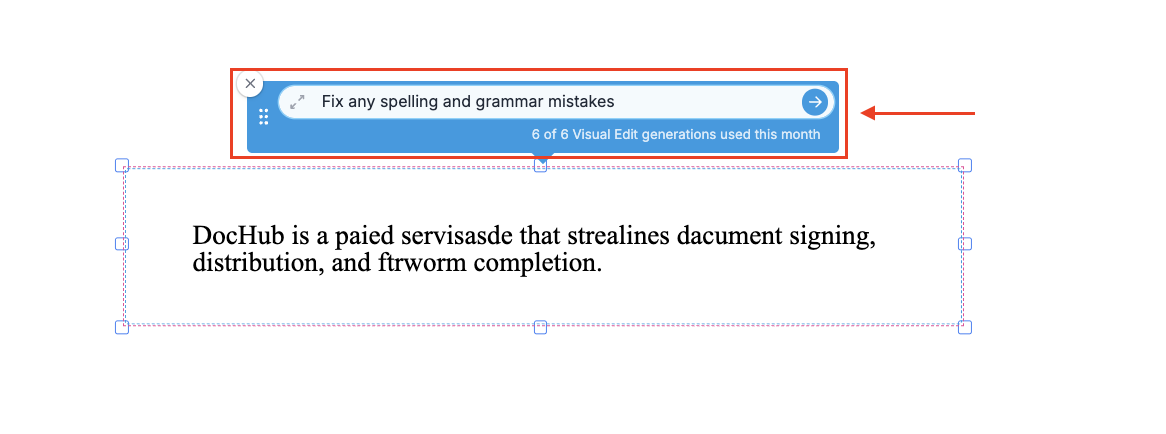
Highlight Your Text Block: Click and drag over the text you wish to edit.
Interact with the AI Box: The floating AI action menu will pop up directly over your highlighted selection.
Choose an Action: Type a custom command/prompt in the text field (e.g., Fix Spelling, Translate to Spanish, Make blue background, etc. )
Apply & Review: Apply the changes to update the text layer without breaking the original page formatting.
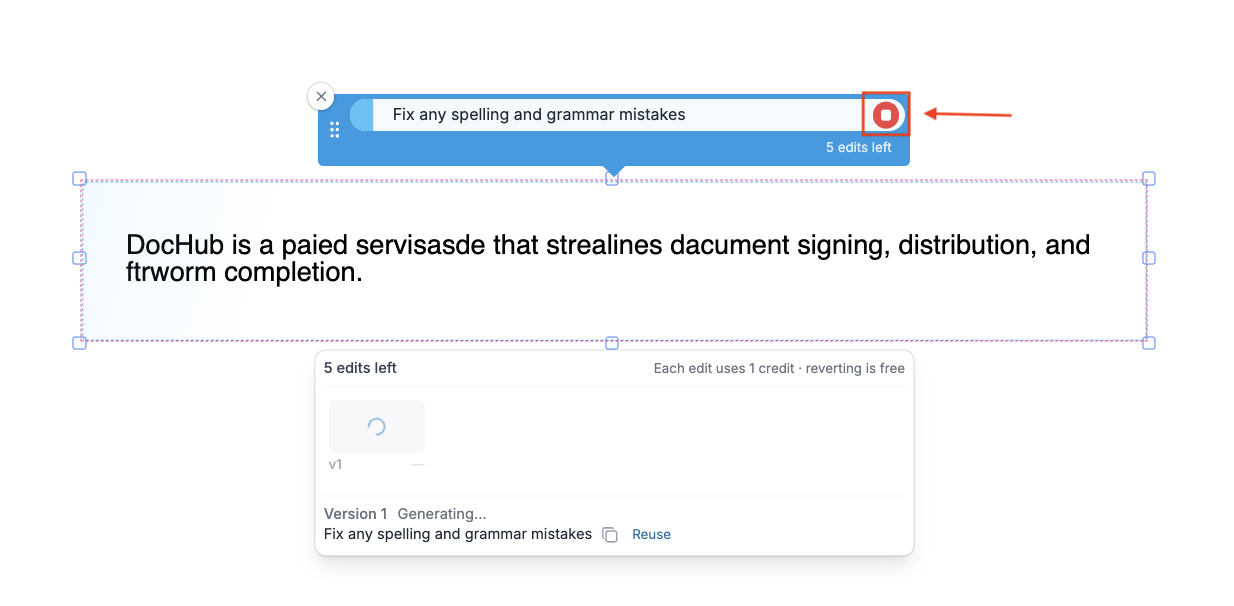
Note: Once you apply changes, the progress bar will remain visible to indicate the current stage of the process. It can be canceled at any moment by clicking the red stop button.
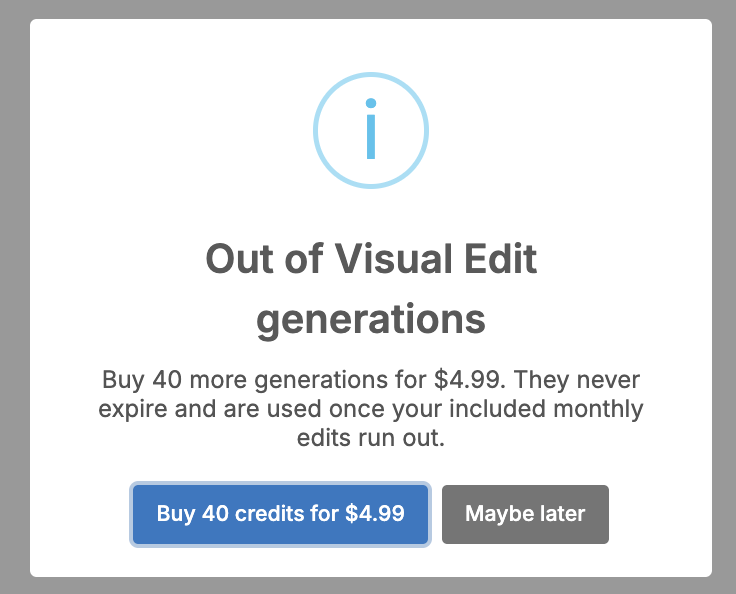
With the Free/Basic plans, you will have 1 prompt per month, and with the Pro plan, 6 prompts per month. If you run out of your monthly limits, you can buy 40 additional credits for $4.99.
Best Practices & Layout Tips
Tip: Respecting Text Box Margins. The AI tool modifies text directly within the document framework. If your document has tight visual margins, avoid adding too much text with custom prompts to keep text from overflowing.
Note: Scope of Visual Edit. The Visual Edit works locally on the specific text block you highlight on the page. If you want to summarize an entire multi-page document or ask general document questions, open the main DocHub AI Assistant sidebar panel.