DocHub completely simplifies the workflow for editing & signing PDF documents and other files and helps automate and streamline the sending of documents for electronic signature. With its long list of document management tools, DocHub is an essential app for anyone who handles PDFs for business or personal use.
The PDF editor tools can be grouped into 3 main categories:
Tool Bar Annotations
The main row of editing tools above an open document.Page Controls
A panel for manipulating the pages of a PDF for reordering, merging, rotating, etc.Fields Manager
An interface to insert form fields and assign them to your signers.
Once you are finished editing, annotating, or signing your PDF, choose from several different options for sharing, downloading, and exporting your document. DocHub is also integrated with Google Drive, Dropbox, and Microsoft OneDrive.
To get started, see: Uploading documents and PDFs to DocHub
Tool Bar Annotations
The Tool Bar above an open document has most of the PDF editing or annotation tools you'll ever need to markup documents.
Just select the tool you want to use and click anywhere on your document to add it as an annotation. Each annotation will have its own window, as a frame, around it that can be edited later.
Add Text
Add text in a variety of fonts and choose the size and color.Edit Text
Modify text within a PDF document directly, rather than just overlaying new text on top.Use prompt commands to fix spelling, alter tone, expand or condense paragraphs, and translate content in real time with the AI-powered tool.
Turn typed lines into bulleted, numbered, or checklist formats using the list icon on the text options bar.
Draw
Use a freeform pen tool & assisted drawing for circles, rectangles, straight lines, & arrows.Highlight
Add highlighter to emphasize certain areas of a document.Comment
Insert comments in the form of a small stickie icon that can be expanded to display or hide your feedback.Whiteout or Redact
Cover up embedded text or other content with white or black space.Stamp
Insert checkmarks & hundreds of other shapes in any size you need.Insert Image
Insert images anywhere on your PDF by uploading an image fileSign or Initial
Electronically sign & initial a PDF document
You can also Undo ⟲ & ⟳ Redo annotations that you've added. You'll see the buttons near the left side of the Tool Bar.
Learn more: Annotate, edit & sign PDF documents using the Tool Bar
Page Controls 
The Page Controls panel lets you manipulate and rearrange entire pages of your document as well as merge PDFs. Hold Control or ⌘ to select more than one page.
It can be toggled open or closed by clicking on the left side of the Tool Bar.
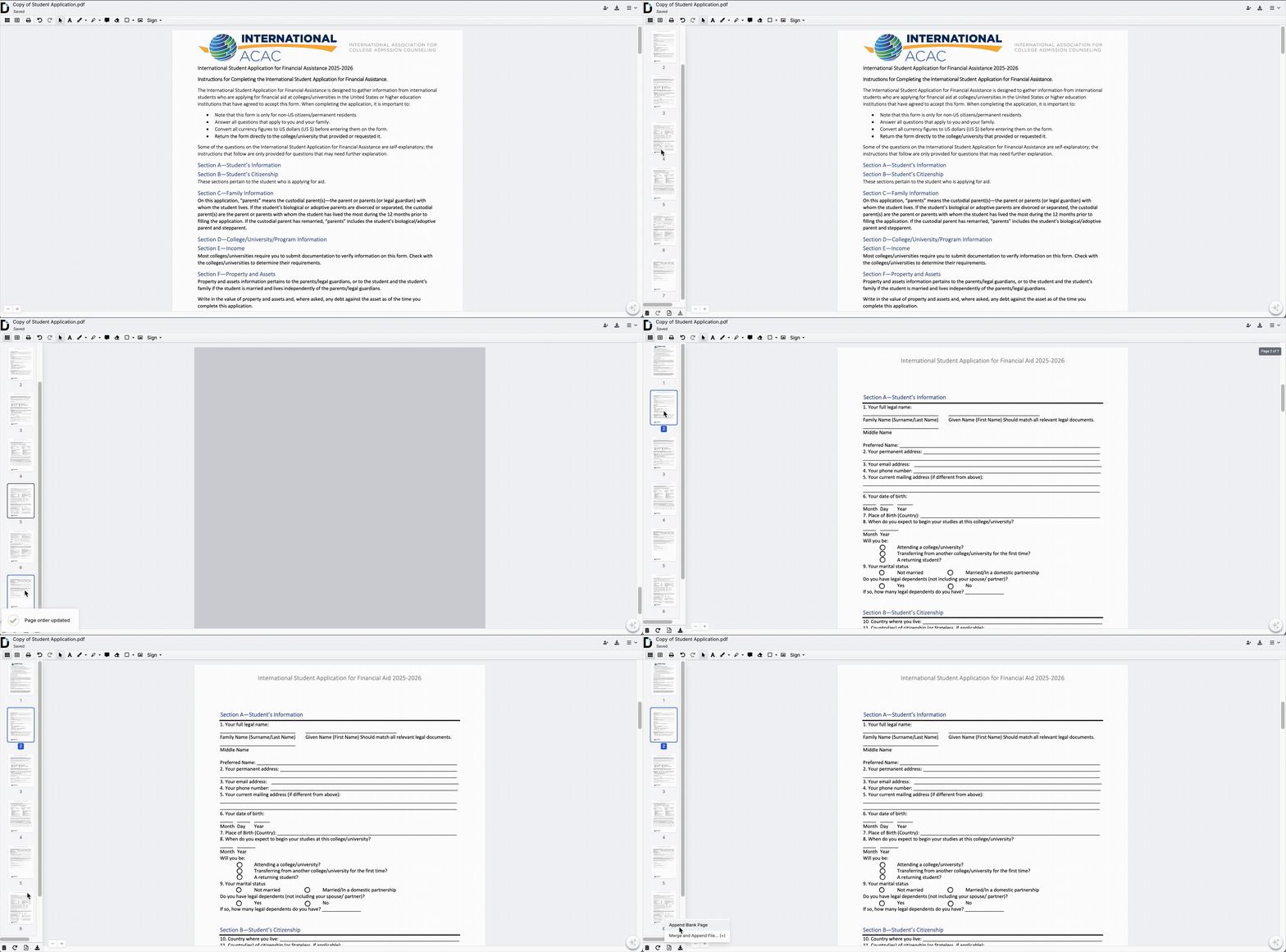
Learn more: Reorder, rotate, remove, or add pages to a PDF using the Page Controls panel
Fields Manager 
The Fields Manager lets you create a PDF form out of any document.
It can be toggled open or closed by clicking on the left side of the Tool Bar. Choose from the following types of fields to insert onto your document:
Text field
Paragraph field
Checkbox filed
Radio Button field
Dropdown filed
Image filed
Attachment filed
Signature field
Initials field
Auto Date field
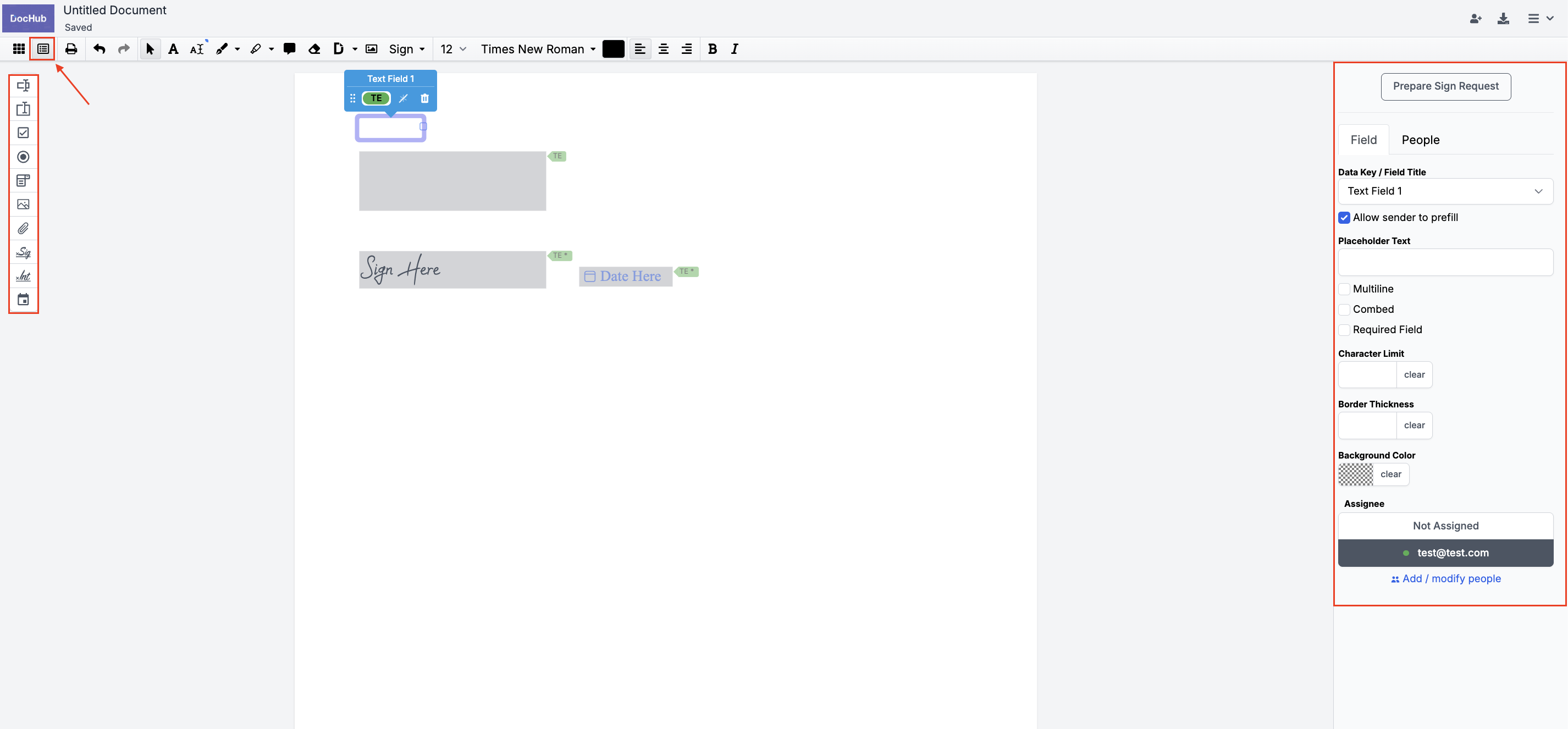
To learn more, see: Create a PDF form by adding fillable fields to a document