Group Fillable Fields
Sometimes, your file may have multiple text/paragraph fields, and all of them should be filled out with similar information (name, address, phone number, etc.). In order not to fill out all of those fields manually with the same information, DocHub allows you to group such fields with each other, so when you enter some text into one of those fields, it will be autopopulated in the rest of the fields from a group. You can do this by setting the same field title to the fillable fields on the right side panel of the editor page and then clicking the Group All button.
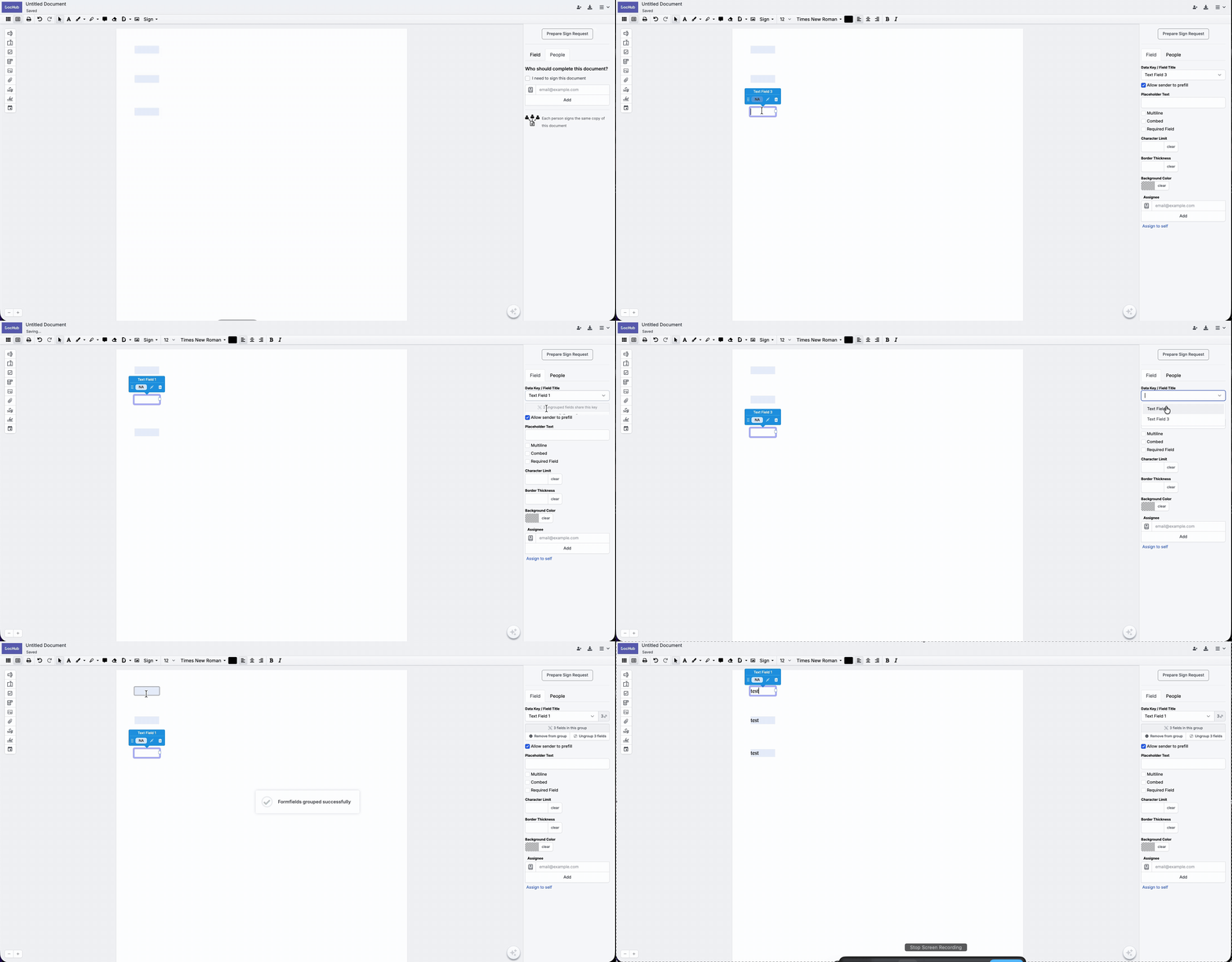
Note: This feature is currently available only for Text and Paragraph fillable fields.
Remove from Group/ Ungroup fields
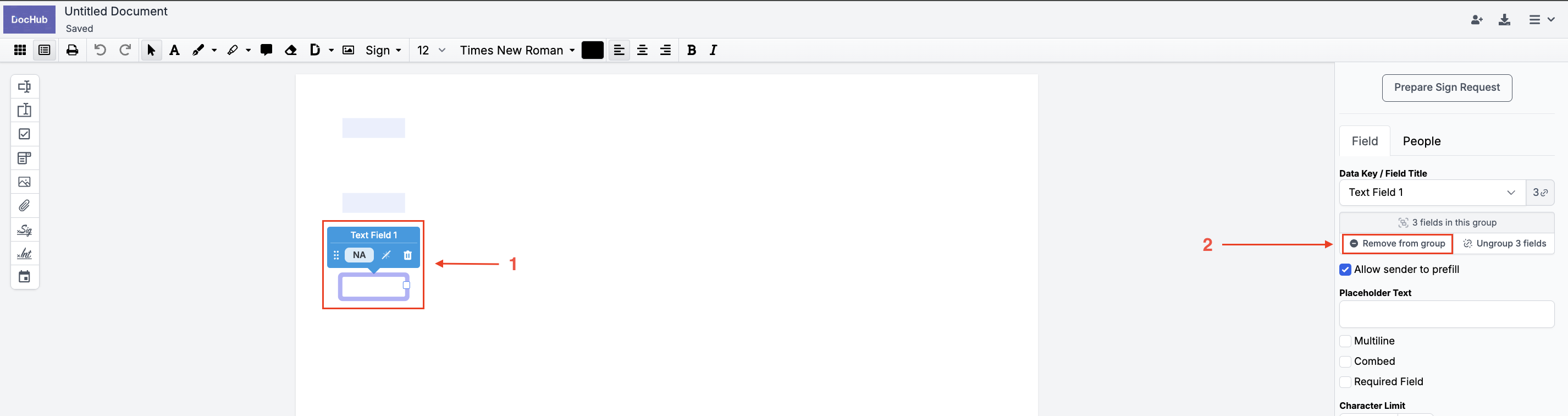
If you need to unlink a field, you can select the specific field you want to unlink, and then click the “Remove from group” button at the right side panel.
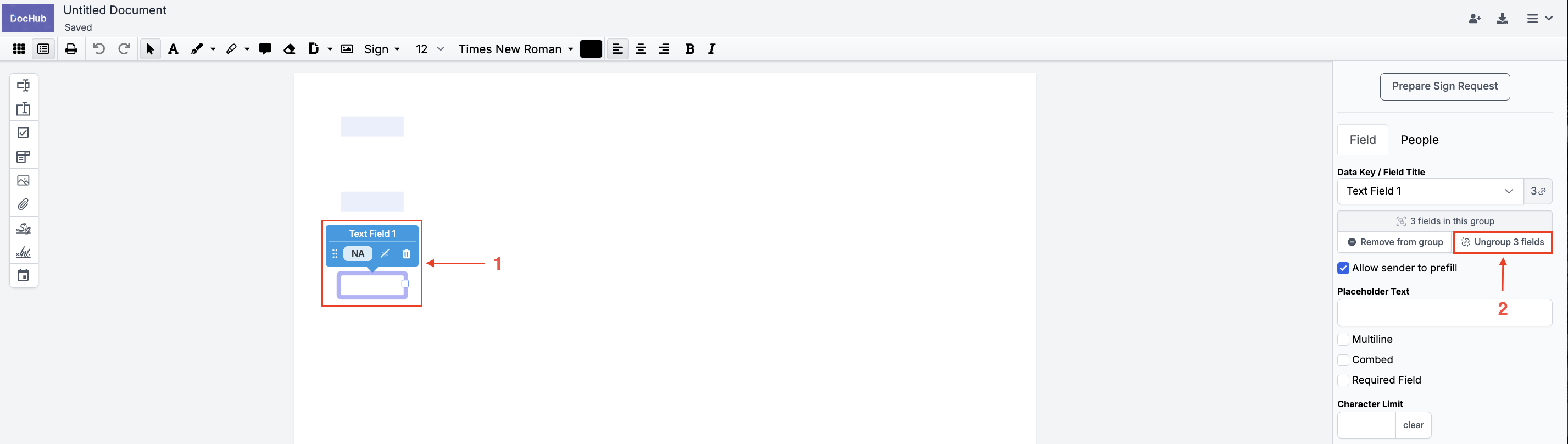
If you want to unlink all of the linked fields, select one of the fields and click the “Ungroup” button on the right side panel.
Multi-movable fields
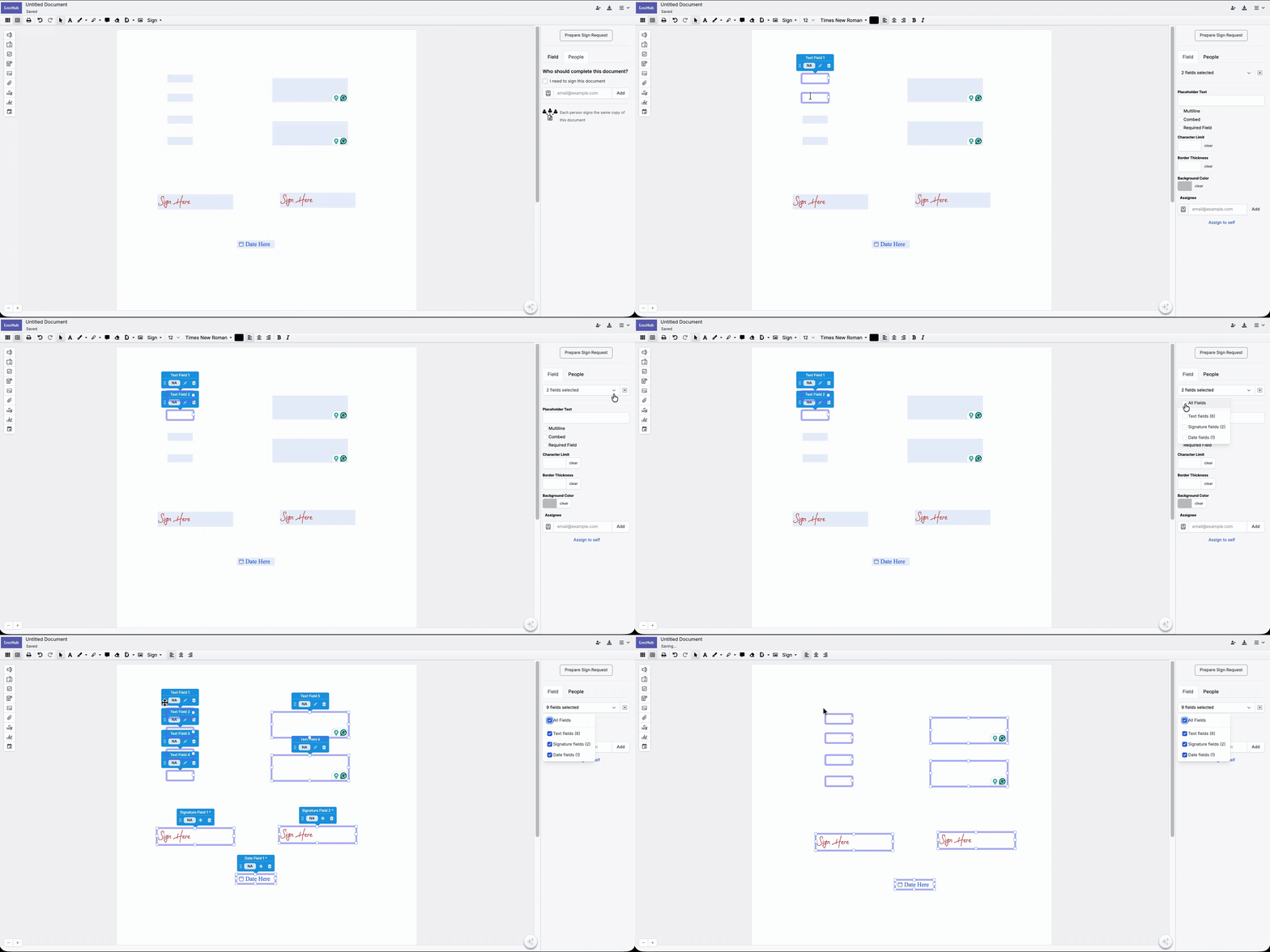
If you would like to select multiple fields and apply the same settings to them at once, such as the same font/background color, text size/font, placeholder text, etc., you can now do this by holding the Shift/Ctrl button on your keyboard (Shift/Command if using Mac) and left-clicking on the fields that you want to.
After selecting multiple fields, you can also copy and paste the selected number of fields by using the Ctrl+C and Ctrl+V (Command for Mac) key combination.
Lastly, you can move a selected group of fields across the document however you want, instead of dragging and dropping each field one by one. And you can also delete multiple fields at once.
Note: The multi-movable fields feature is available only for Pro plans.

If you have a large number of fileds in your file and you do not want to select them manually one by one, after selecting only two fileds, you can choose the All fileds option in the selection drop-down menu of the field menu, located on the right side of the screen.